The latest updates to Copilot enabled a new agent that you can use to quickly create a SharePoint page directly from the chat. It can create content, aggregate information from your sources, and seamlessly create a new page. Let’s check that new feature!
Introduction
Microsoft released a new AI agent for Microsoft 365 Copilot – SharePoint page agent. It’s designed to actually do something instead of just generating content based on your prompts. You can use it to transform your text into a ready-to-publish SharePoint page.
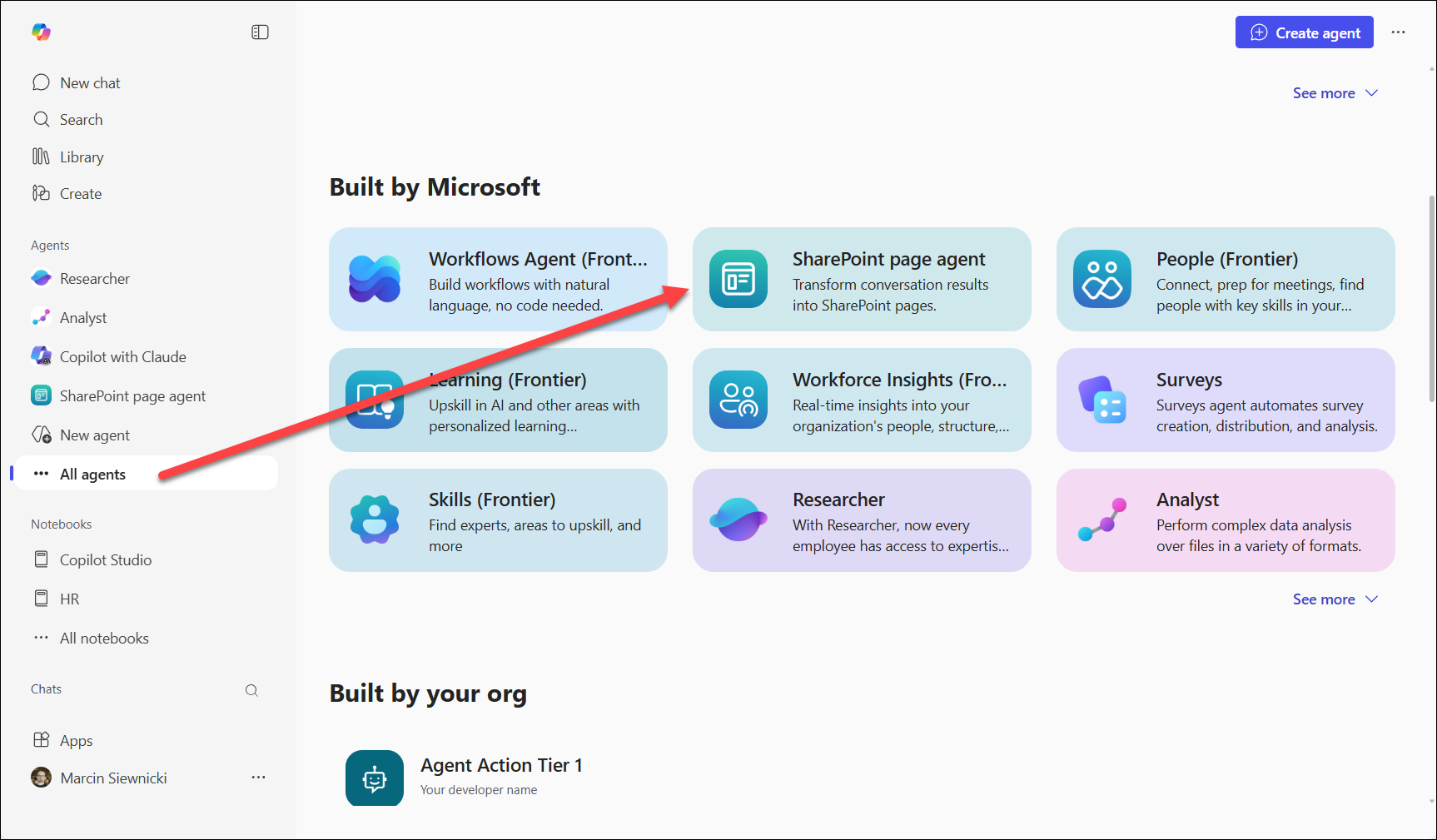
You can find it inside the Agent store – navigate to the All agents section and select it from the Built by Microsoft subsection.
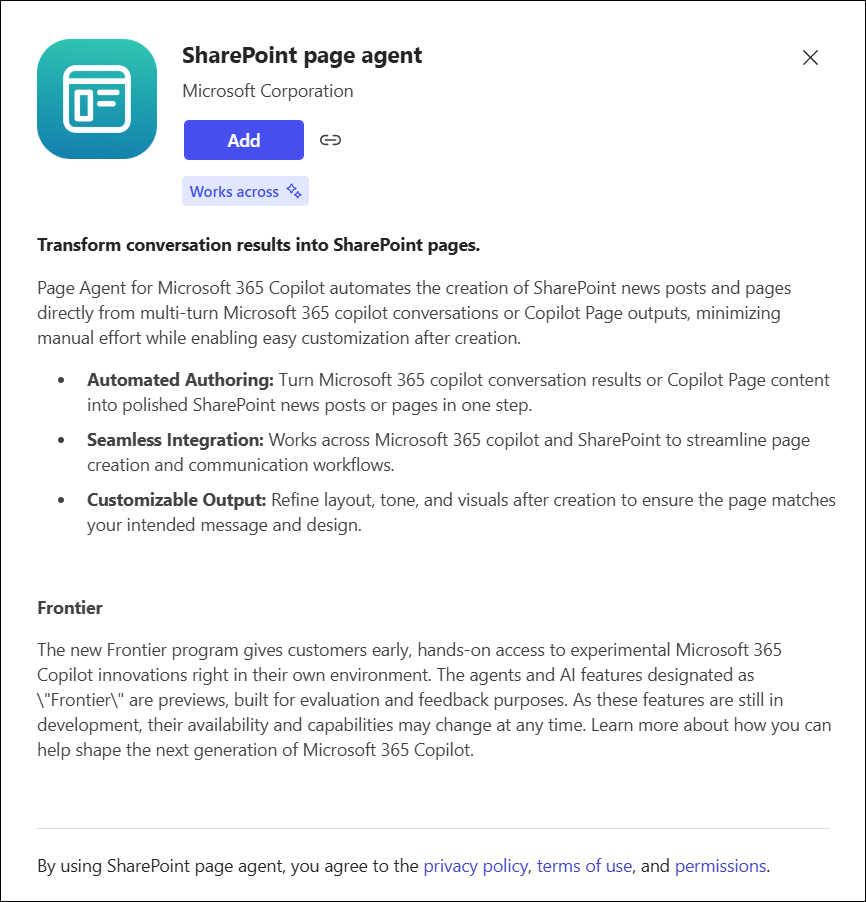
On the agent page, select the Add button to install it.
There are 2 ways to access the agent and use it:
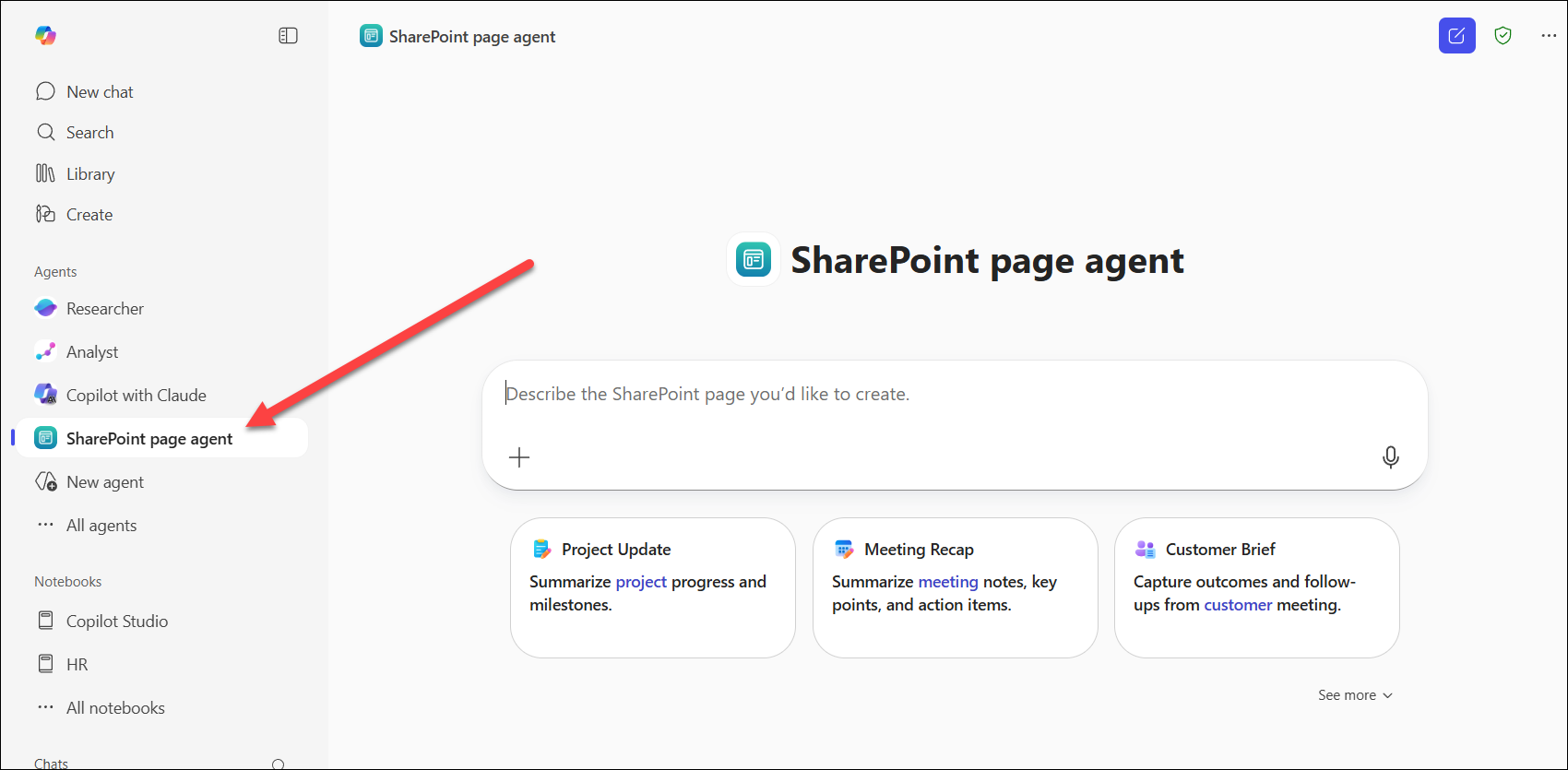
1. Select the SharePoint page agent from the left-hand navigation pane and use it as a standard Copilot chat.
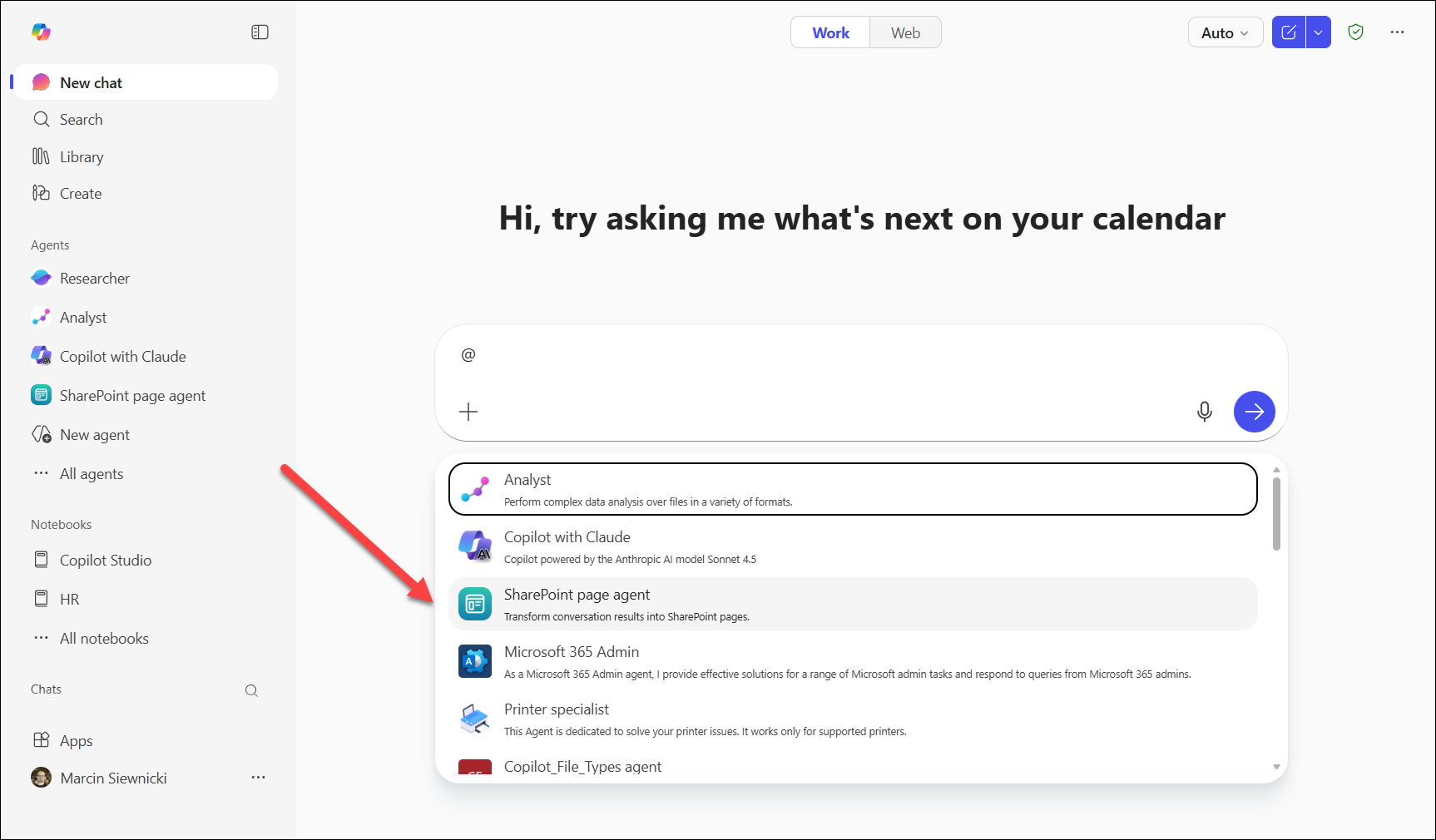
2. Type the @ sign in the Microsoft 365 Copilot chat and then select the SharePoint page agent from the drop-down menu.
Create a page
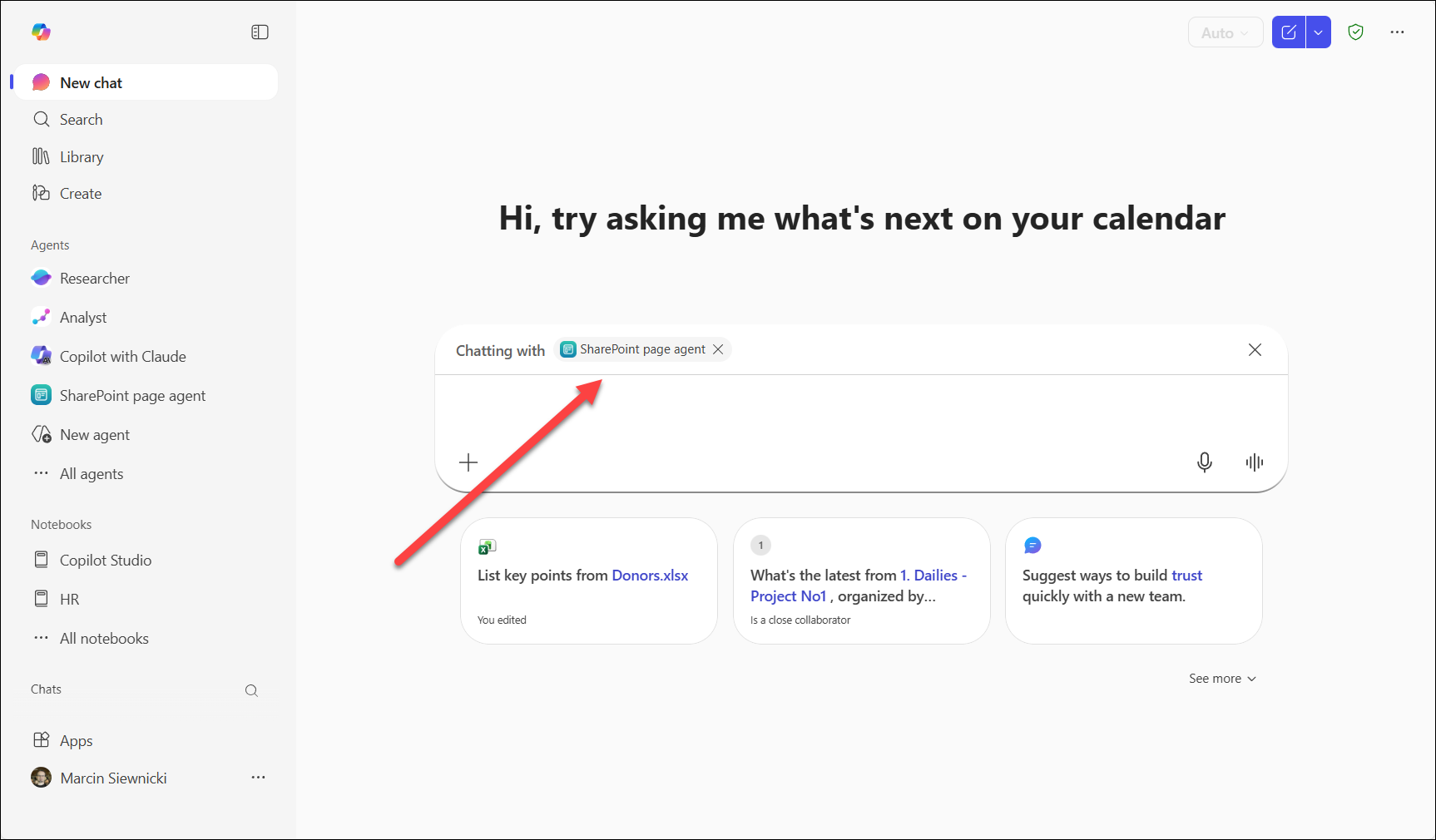
1. Let’s create a page with the agent. In this example, I’ll use the agent selected from the Copilot chat. In the screenshot below, you can see that the proper agent is selected.
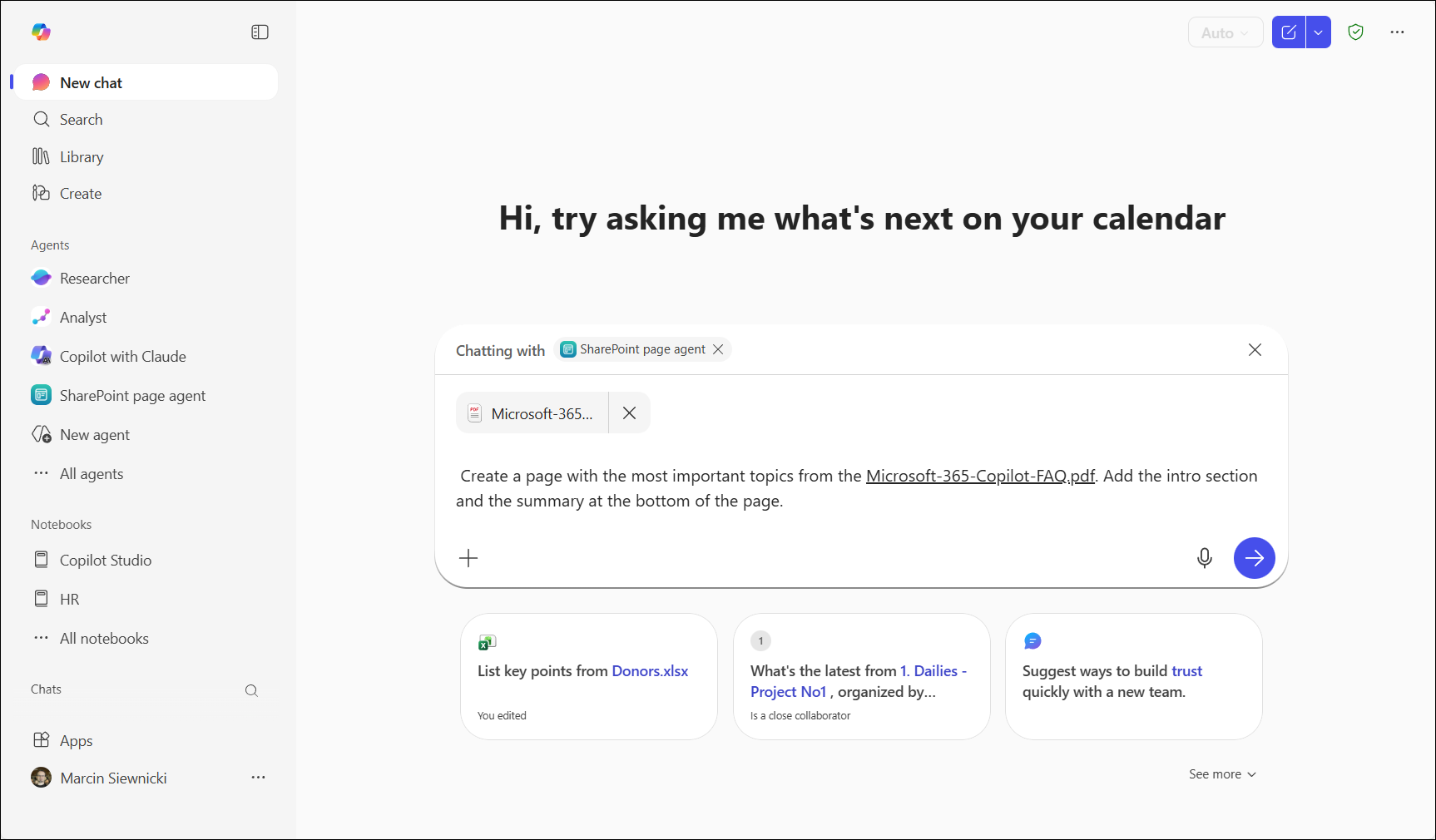
2. I want to create a SharePoint from my FAQ document stored in my OneDrive. I need a prompt that explains what I want and a file selected.
3. Copilot generated page content, and now I can go deeper with editing or create the page right now. The agent proposes the next steps according to the content and current stage of the process. I want to create a page, and I want to select my SharePoint site.
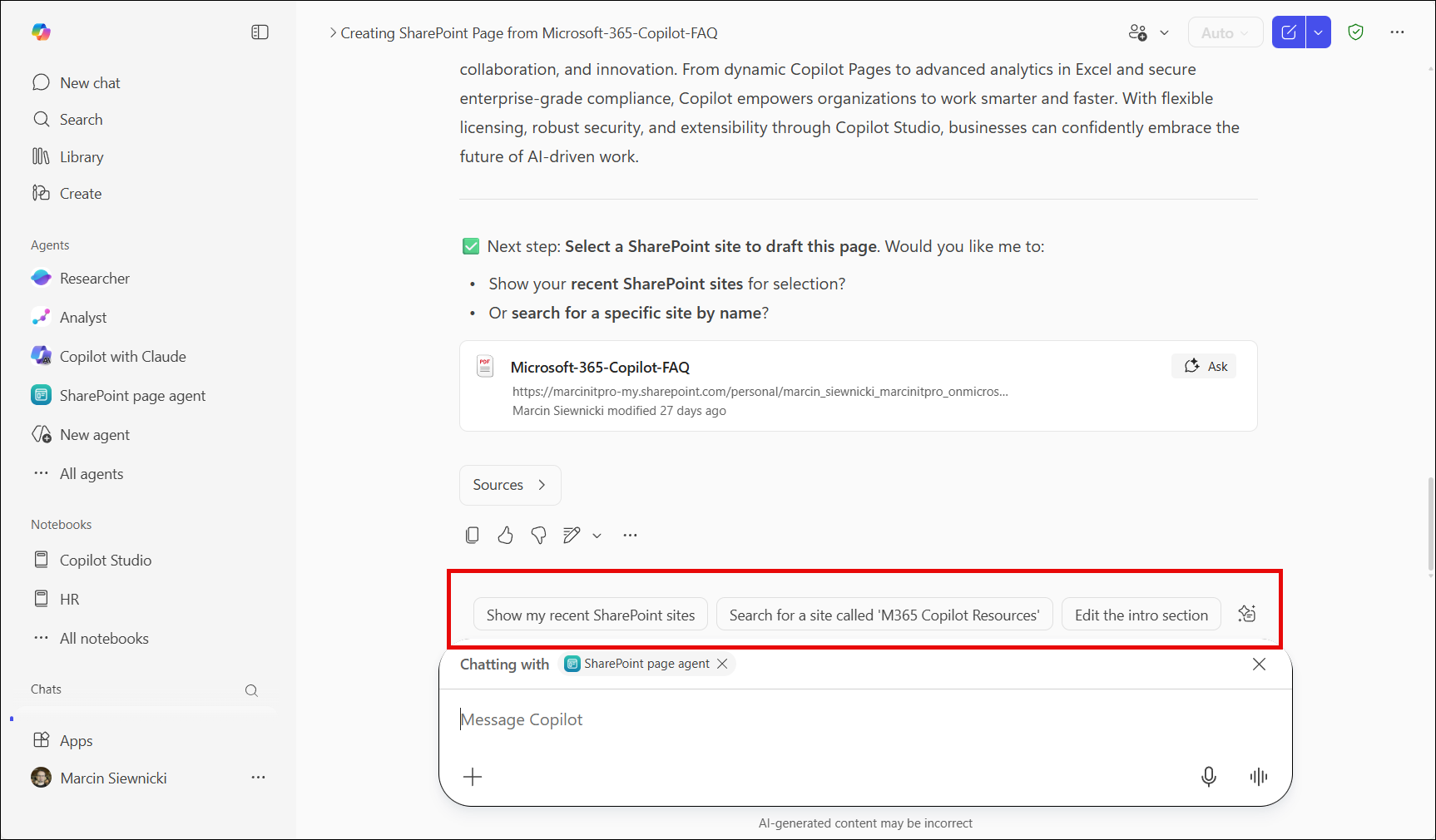
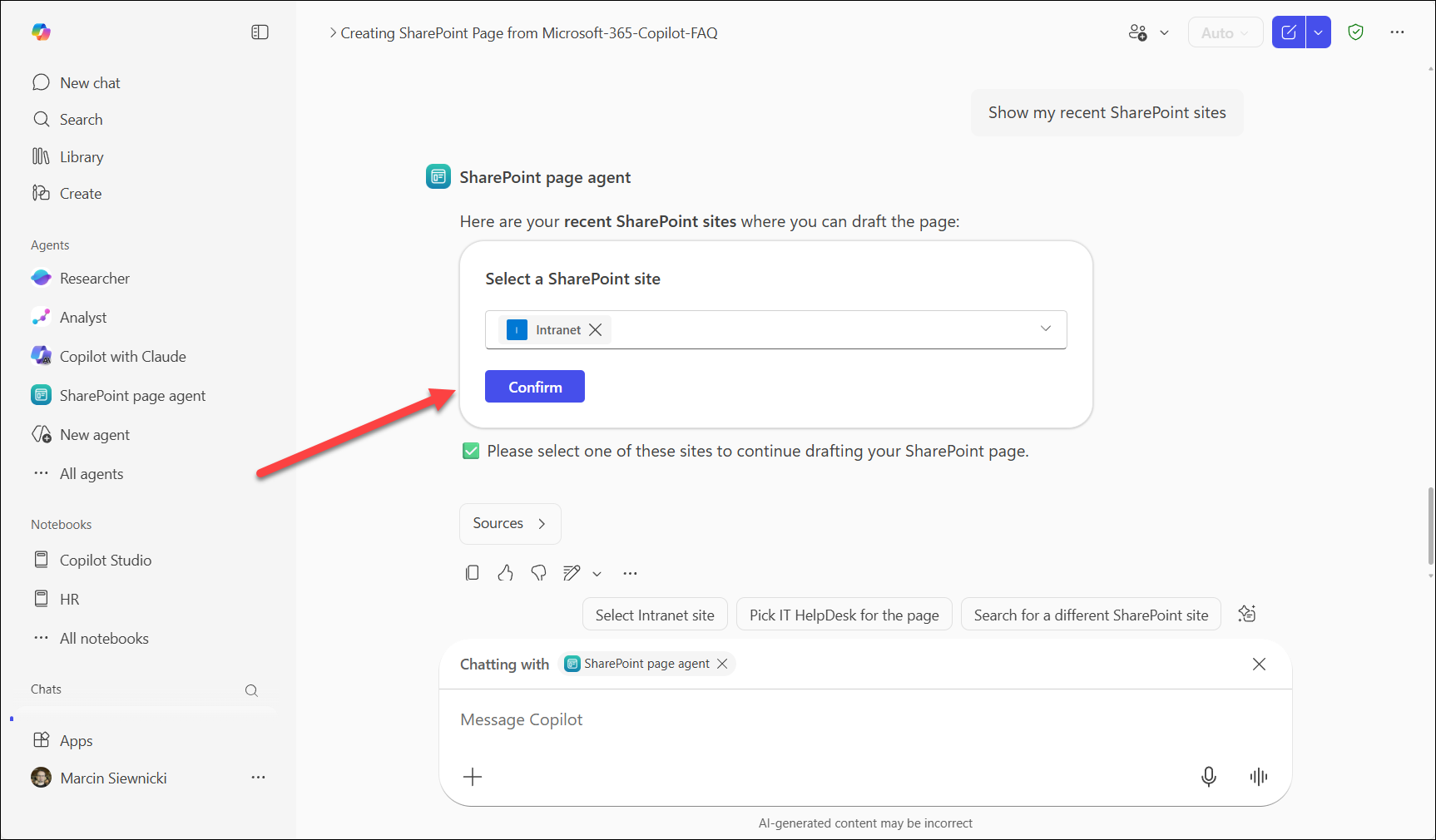
4. The agent gives a dedicated drop-down menu with SharePoint sites, and you can just select one of them. When you’re ready, just select the Confirm button.
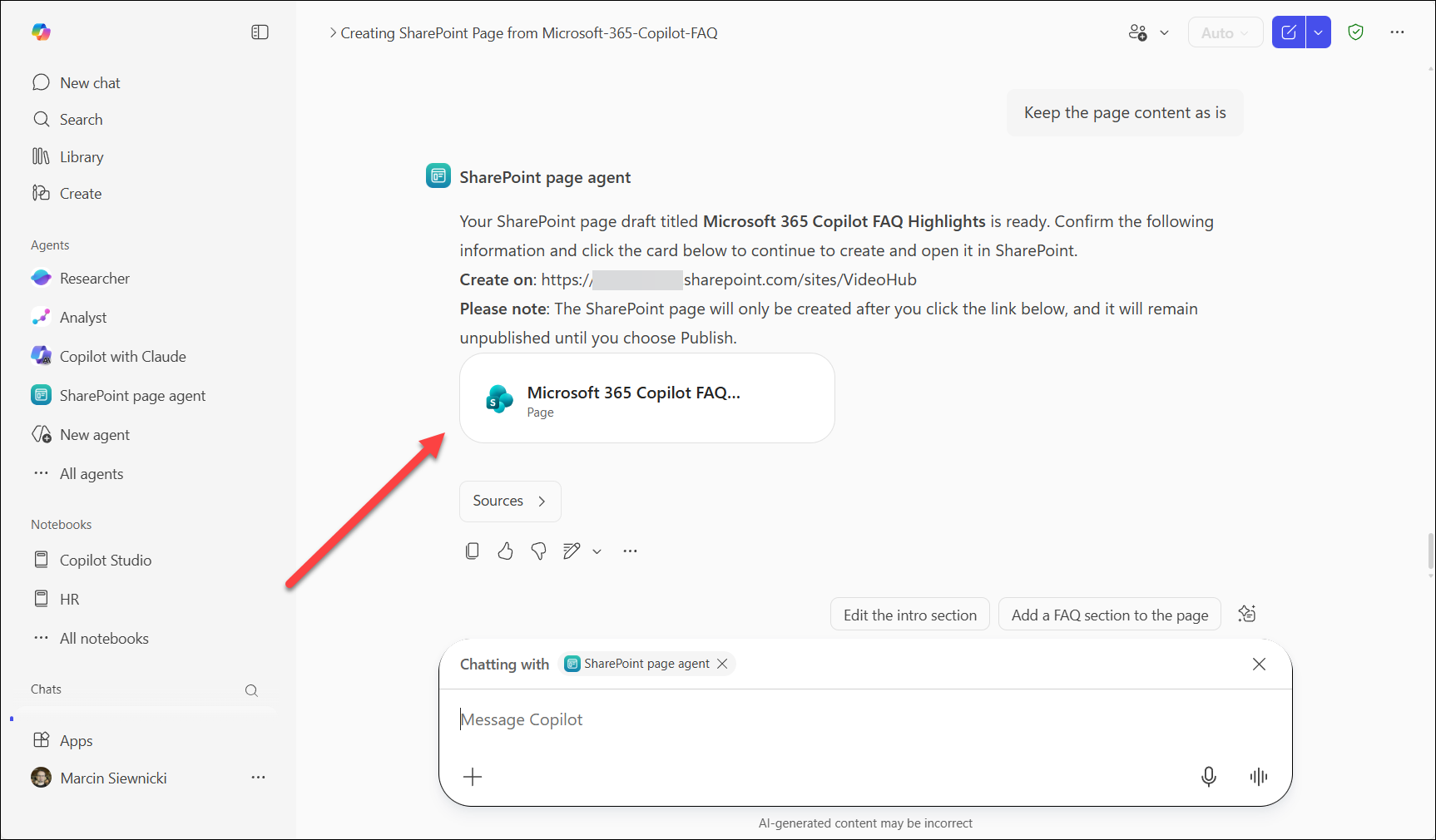
5. The agent will spend some time creating a page and will give you a dedicated link to it. Select the link, and you’ll be redirected to the new page.
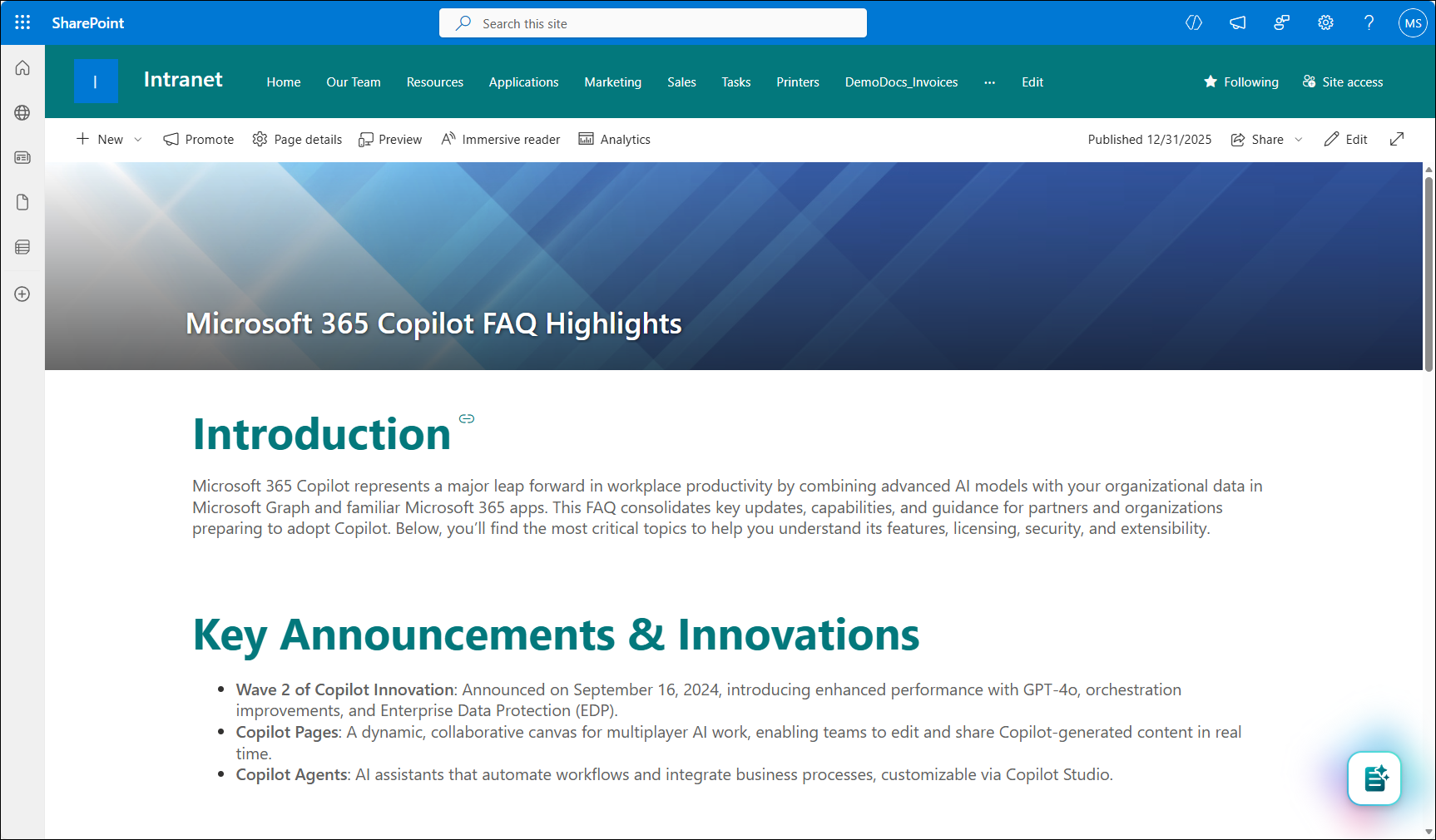
6. On the SharePoint page, you will see a created page with content and images. Now you can work with it just like you do when you create a page with AI directly from SharePoint. You can verify the content, approve it, etc.
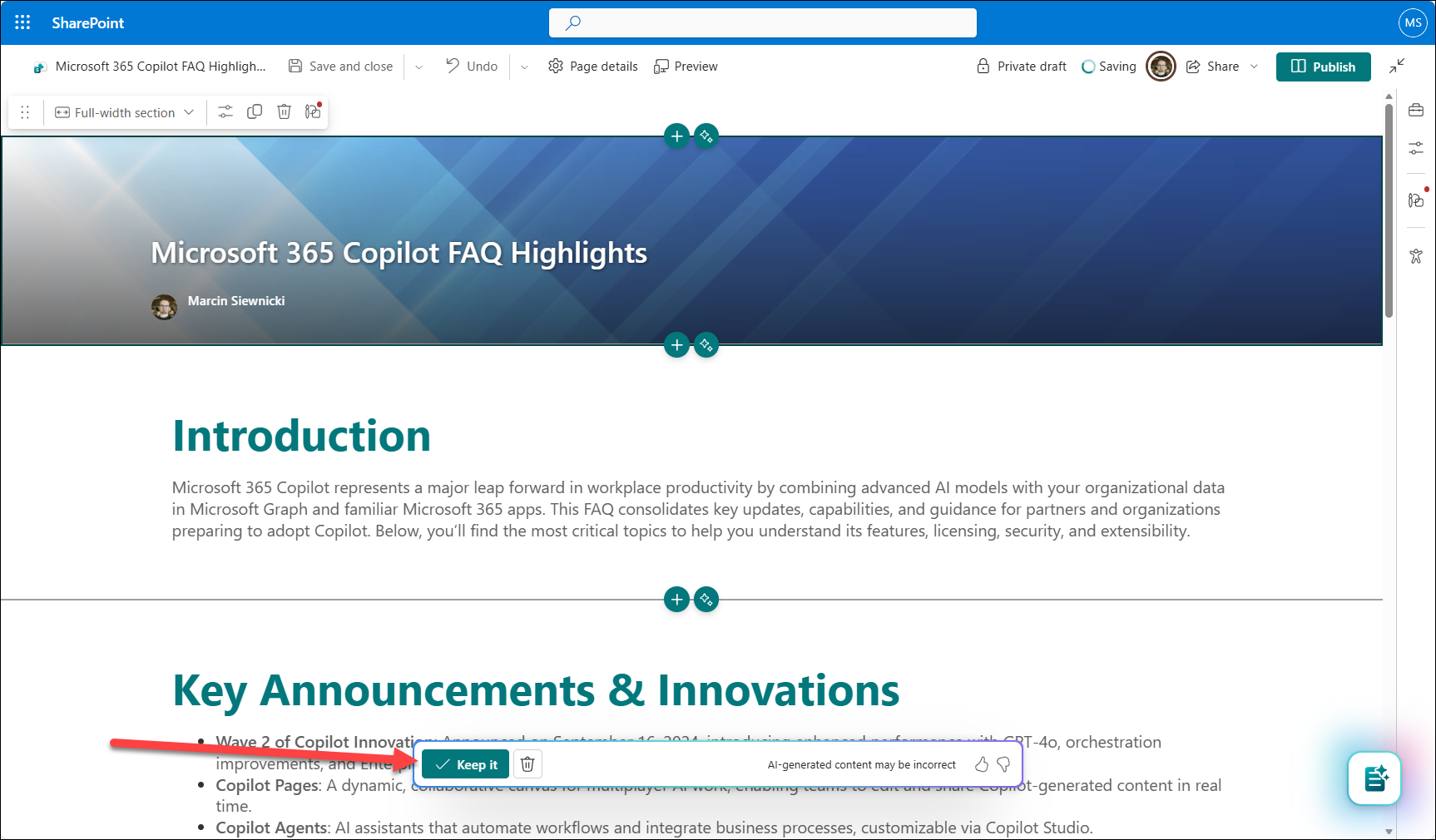
7. Publish the page and share it with your colleagues 😊
Summary
The whole process is straightforward and really fast. You don’t need to copy content between chat and SharePoint or copy a prompt from Copilot to SharePoint AI-wizard. Instead, you can start wherever you want and use the agent to finish the job and create a page on a selected site.
The entire process is interactive, so you will get hints and a dropdown menu with SharePoint sites. Of course, you can create it only on sites that you can access.
Is it helpful? Yes, it is. You can use it to quickly create a new draft from project documents, selected websites, or even a meeting transcript. As usual, you have to check the quality of the generated page and confirm that everything is correct.
It’s also a new approach to deliver skills to Copilot – instead of building more and more embedded features inside the chat, you can select a dedicated skill and use it only when you need it.