Microsoft released an interesting feature for list and libraries – Quick steps column. It’s designed to help you create quick automation and put them directly on list and libraries views. No more clicking – just a button with your own action. Let’s check how it works.
Introduction
The Quick steps column is the evolution of the Quick step feature that is available at the list/library level. When you create a Quick step in a list, you can use it through the item menu.
The new column is designed to simplify the entire process – instead of clicking through the menu options, you have a dedicated button next to your list item or a document. This approach makes it easier to use in real-life scenarios. It offers the same set of features as the global feature (and the same limitations).
How to
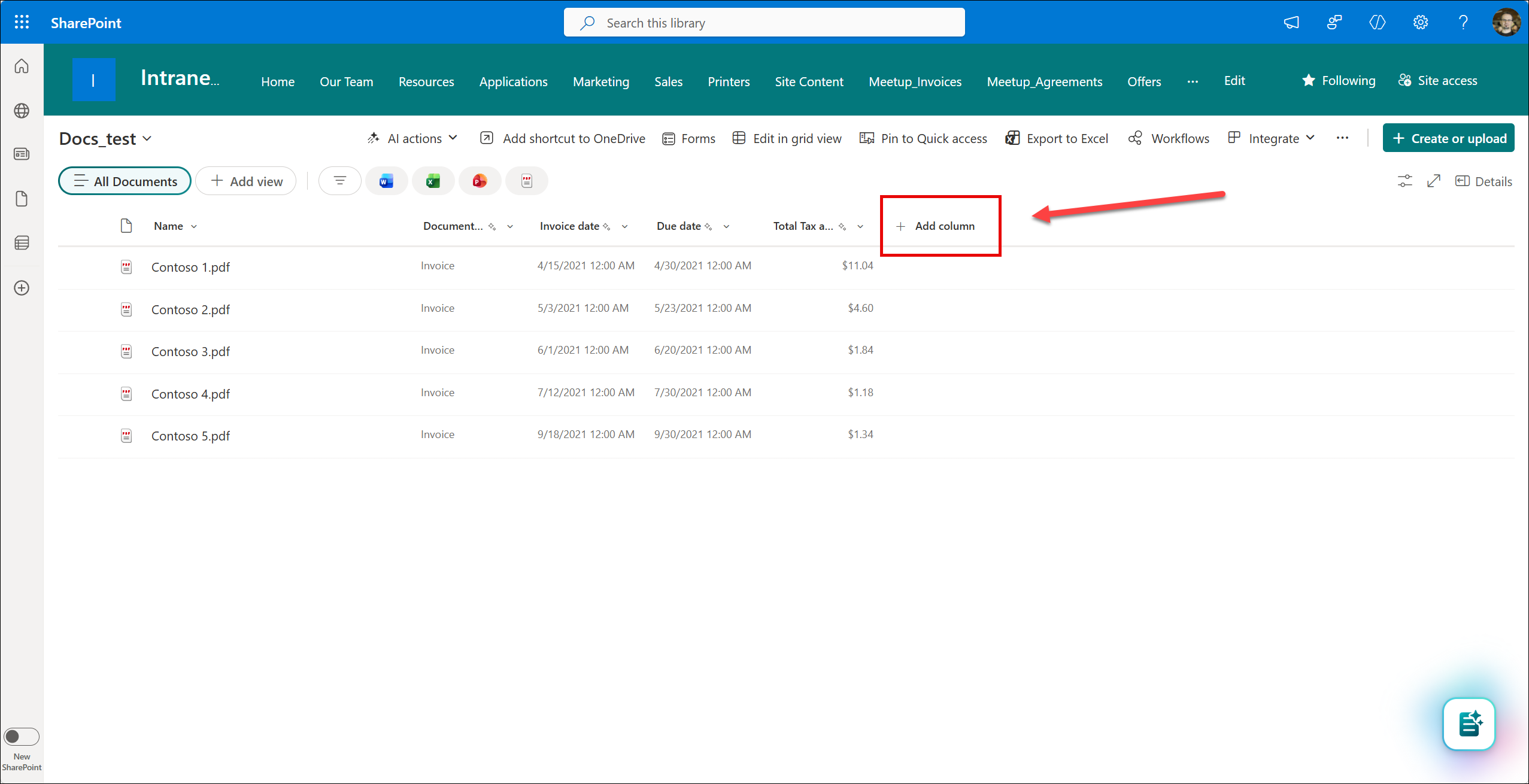
1. Navigate to a list or a library and select the Add column button.
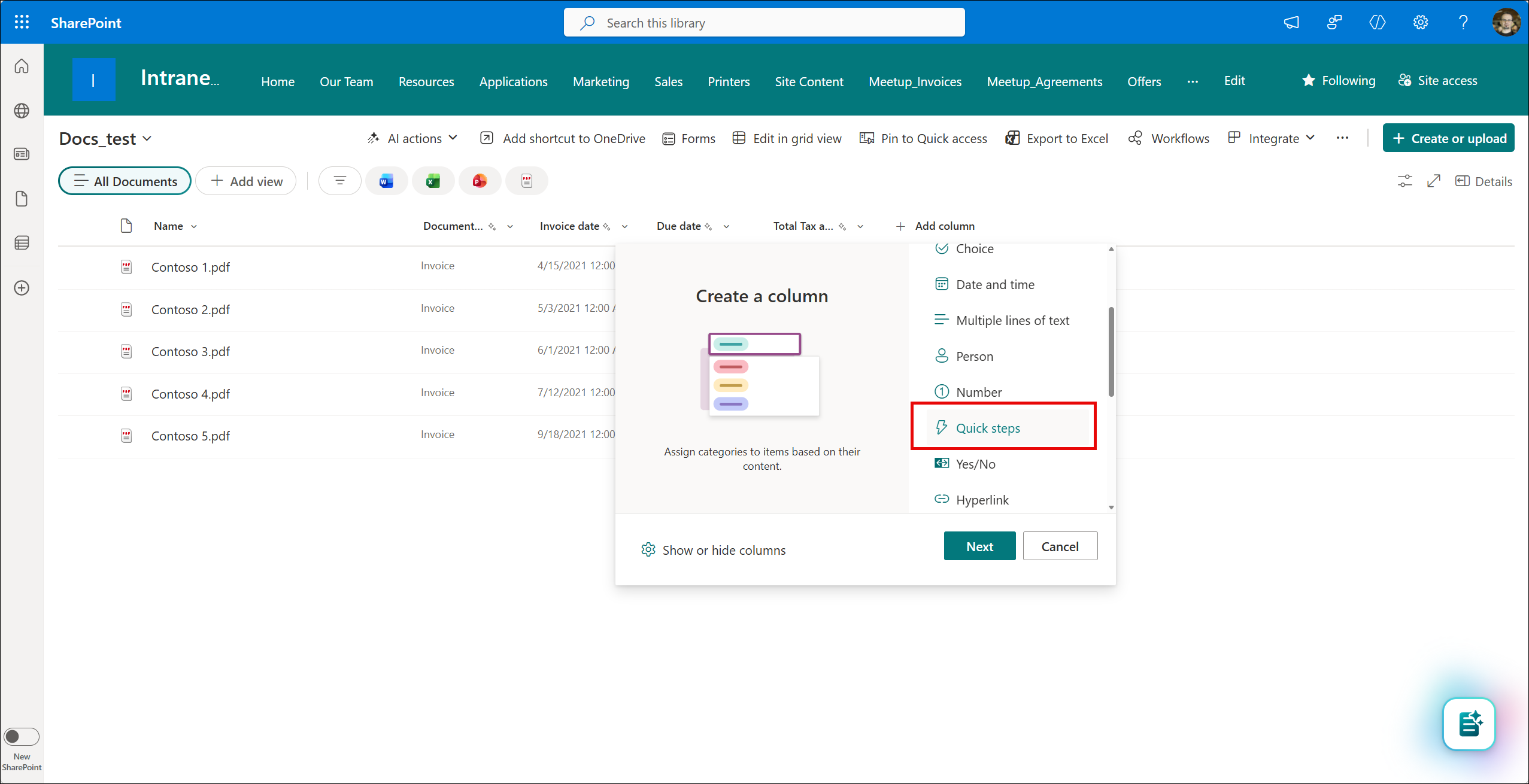
2. Select the Quick steps column type.
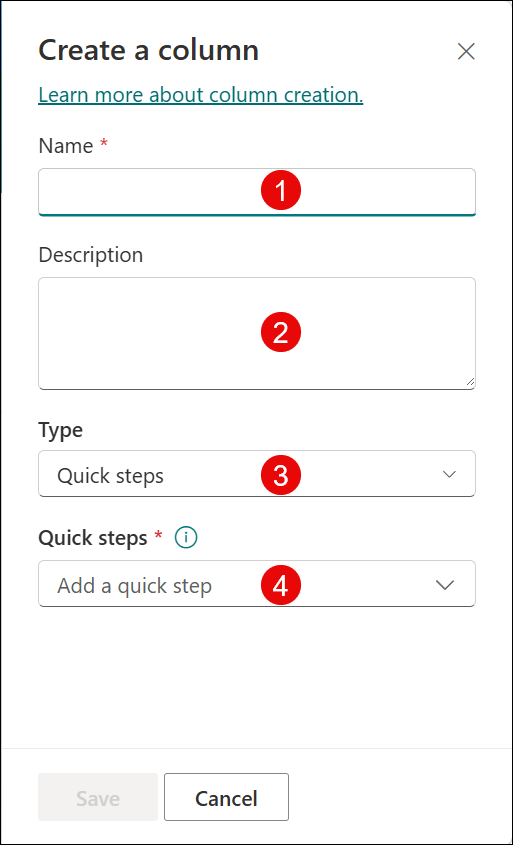
3. Provide the required information. Enter a column name (1) and provide a description (2). Then select the Add a quick step dropdown.
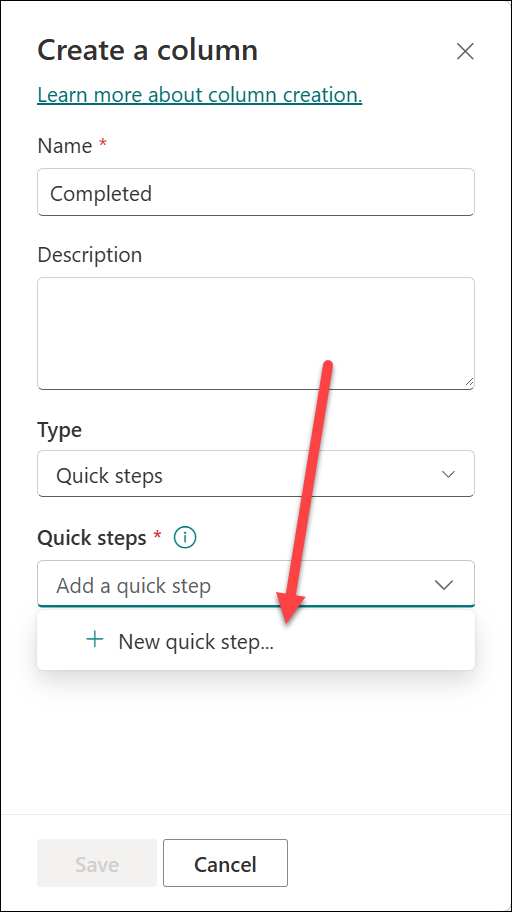
4. Select the New quick step. If you have already created a quick step, then you can select it from the list.
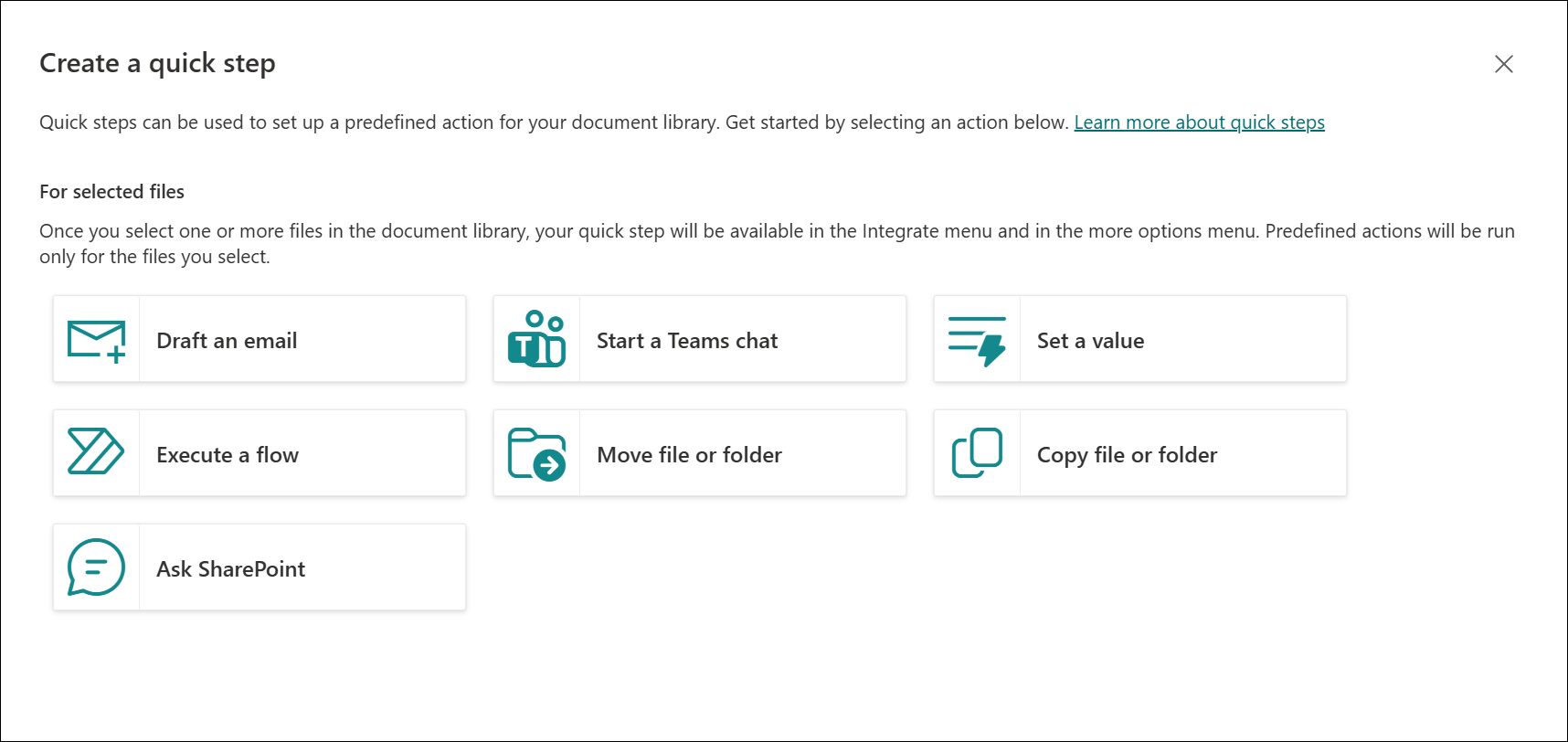
5. Select a quick step that you need to. In this example, I will use Set a value.
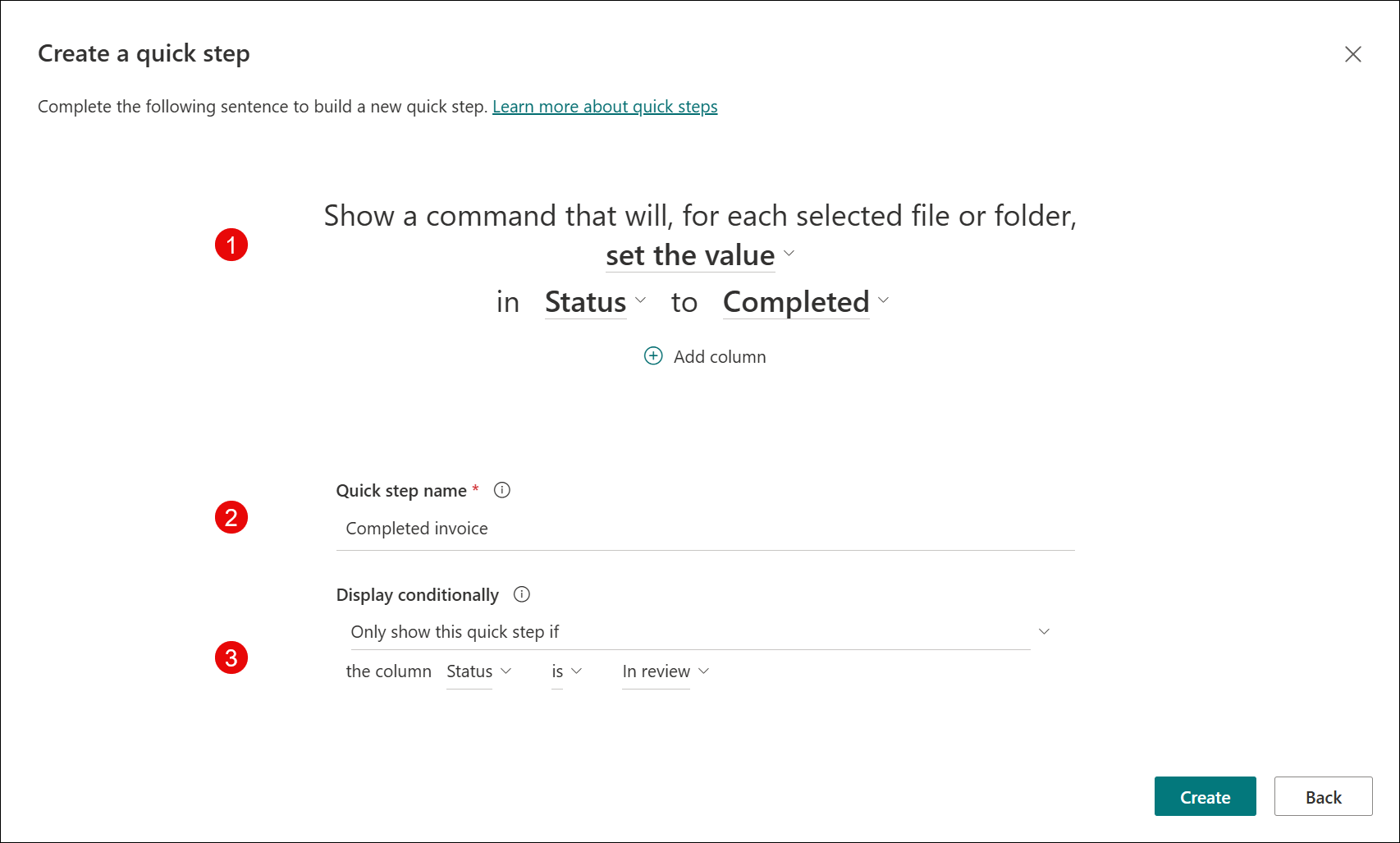
6. Configure your Quick step. Each one has different settings and options. In this example, I have to select a column and a value (1). Then the quick step will change the value in the selected column to the defined one. Provide a name (2) and the conditions when the Quick step is visible (3). When it’s done, select the Create button to finish the process.
7. Now you can confirm and create the column or add another Quick step. You select more than one to provide different actions in one column. In this example, I selected the Completed Invoice and the Archive steps. The first one changes status to Completed, and the second one copies a file to an Archive folder.
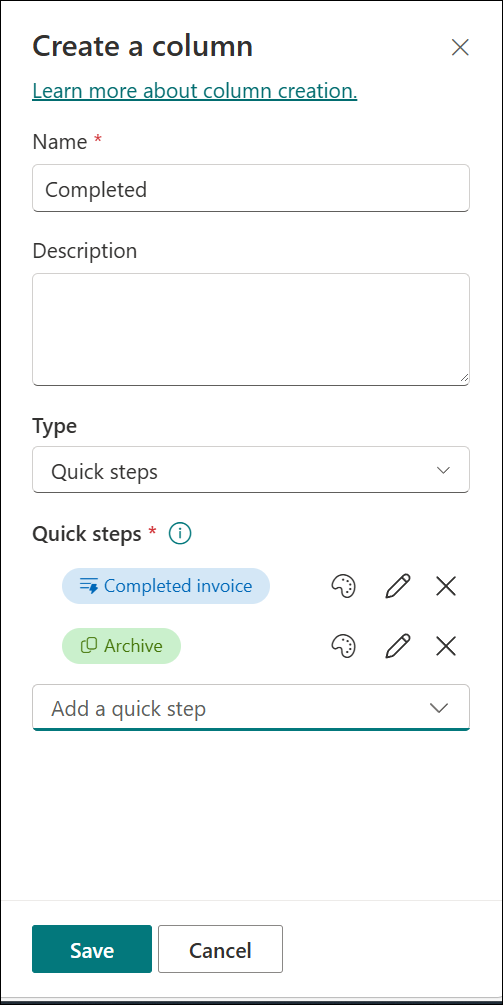
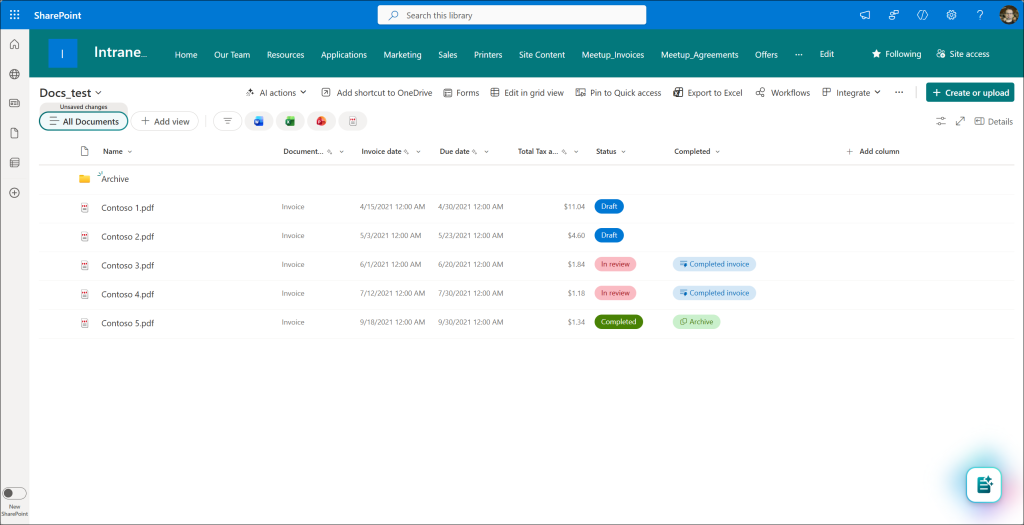
8. The view displays the new column with defined Quick steps.
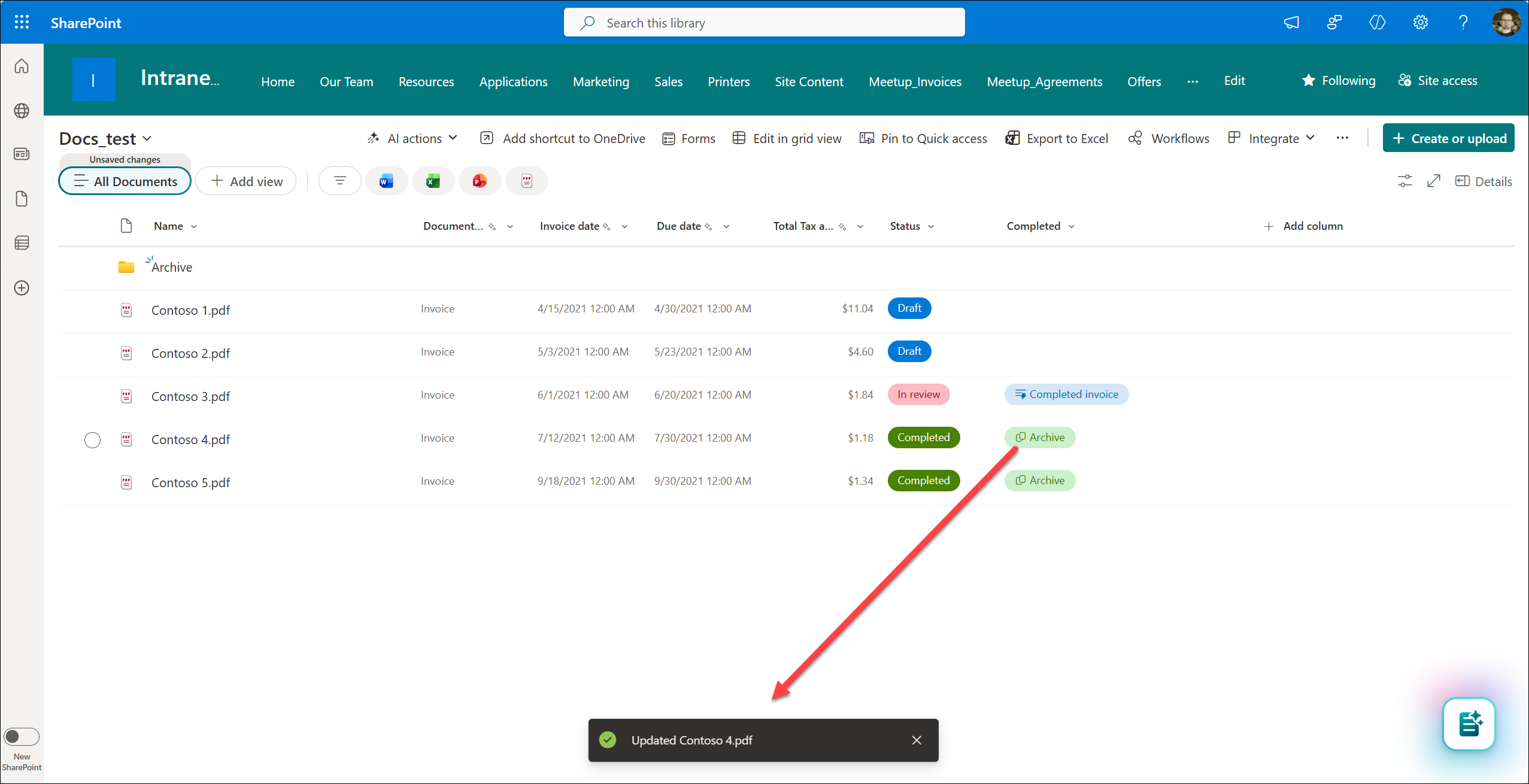
9. If you click on the button than configured actions will run. In this example, the status was changed to the Completed one.
Quick steps
There are 7 Quick steps – 4 in lists and 7 in libraries.
1. Draft an email (list/library)
Opens a pre-filled Outlook email draft. You can select recipients from a People column or enter manually, configure the subject and CC fields. A link to the selected item/document is included automatically.
Use cases: Notify document owners of review deadlines; alert task assignees of priority changes; replace retiring SharePoint Alerts for ad-hoc notifications.
2. Start a Teams chat (list/library)
Opens a new Teams chat window with specified people (from People columns or manually entered). Automatically includes a link to the selected item/document.
Use cases: Discuss a specific document with its author; start task-related conversations; quick chat on list items without switching context.
3. Set a value (list/library)
Updates one or more column values on selected items to predefined values. Supports Choice, Text, Date, Number, and metadata column types.
Use cases: set document status to “Approved”; stamp priority levels; update date fields for milestones.
4. Execute a flow (list/library)
Runs a specified Power Automate flow using its Flow ID. Each time you want to use it, you need to select additional confirmation in the Power Automate pane in the left-hand navigation.
Use cases: Complex multi-step automation as a single button: PDF conversion + archival + notification; cross-site data sync; custom approval chains; integration with external systems.
5. Move file or folder (library)
Moves selected files or folders to a preconfigured destination location. Functions like a reusable, one-click “Move to” shortcut.
Use cases: Route finalized documents to the archive folder; move approved files from staging to the production site; organize uploads into proper folder structures.
6. Copy file or folder (library)
Copies selected files or folders to a preconfigured destination.
Use cases: Publish approved documents to the communication site; create backup copies in separate libraries; distribute templates to team sites.
7. As SharePoint (library)
Run a predefined instruction (prompt) in SharePoint Agents.
Use cases: Get a detailed description in a specific format about documents; Summarize files; Get insights from documents.
Summary
The Quick steps columns is a great enhancement to the standard Quick steps features. It moves those quick actions from the navigation menu directly to the list or library. You can assign multiple actions to one button and add conditions. Then just one click and something’s done.
There are 3 issues that should be fixed – you can’t format this column type using JSON formatting; you must provide an ID for a Power Automate Flow; running flows is not the fastest experience. The first two are minor issue and it would be nice to have them fixed. The last one (running flows) is something that must be redesigned or done differently, because it can be really slow when you run a flow after a few days. It’s really annoying waiting without any specific information about what’s happening. The Run flow pane itself could also be updated, but it’s just a design thing.
Nevertheless, it’s a great feature, and it will help in many business scenarios.