Microsoft released Skills for Copilot in SharePoint. This is a brand new feature dedicated to reusable tasks related to data stored in SharePoint. You can create your own skills, save them on a site, and then use them whenever you need them. Let’s try to create one!
Introduction
Copilot in SharePoint (formerly AI in SharePoint) is a chat with AI features designed for tasks specific to SharePoint (lists, libraries, pages, etc.). You can ask a question about data, create a new list, enhance existing libraries, create pages, and so on. But now we have a new feature – Skills.
A skill is the ability to do a task in SharePoint. You can use skills to do repeatable or multi-step workflows based on your data in sites. A skill can generate a weekly report based on sales data inside a folder, summarize documents about a specific project, or create a new offer based on data and a template.
You can create multiple skills on a site – 1 for reports, 1 for projects, etc. When you want a new report, you can just type something like that – Create me a new sales report for last month. Copilot in SharePoint automatically finds a specific skill and creates a report for you based on internal instructions. No more pasting long and complex prompts.
Plus, other site members can use those skills as well!
You can create a skill in chat using natural language or create it as a markdown file and upload it to a dedicated SharePoint document library.
Configuration
Before you start creating skills, you have to meet requirements and enable the skills library on your site.
Requirements:
1. Copilot license
2. Access to a SharePoint site where AI in SharePoint is available.
3. Permissions to the site: Edit to create skills, View to run skills.
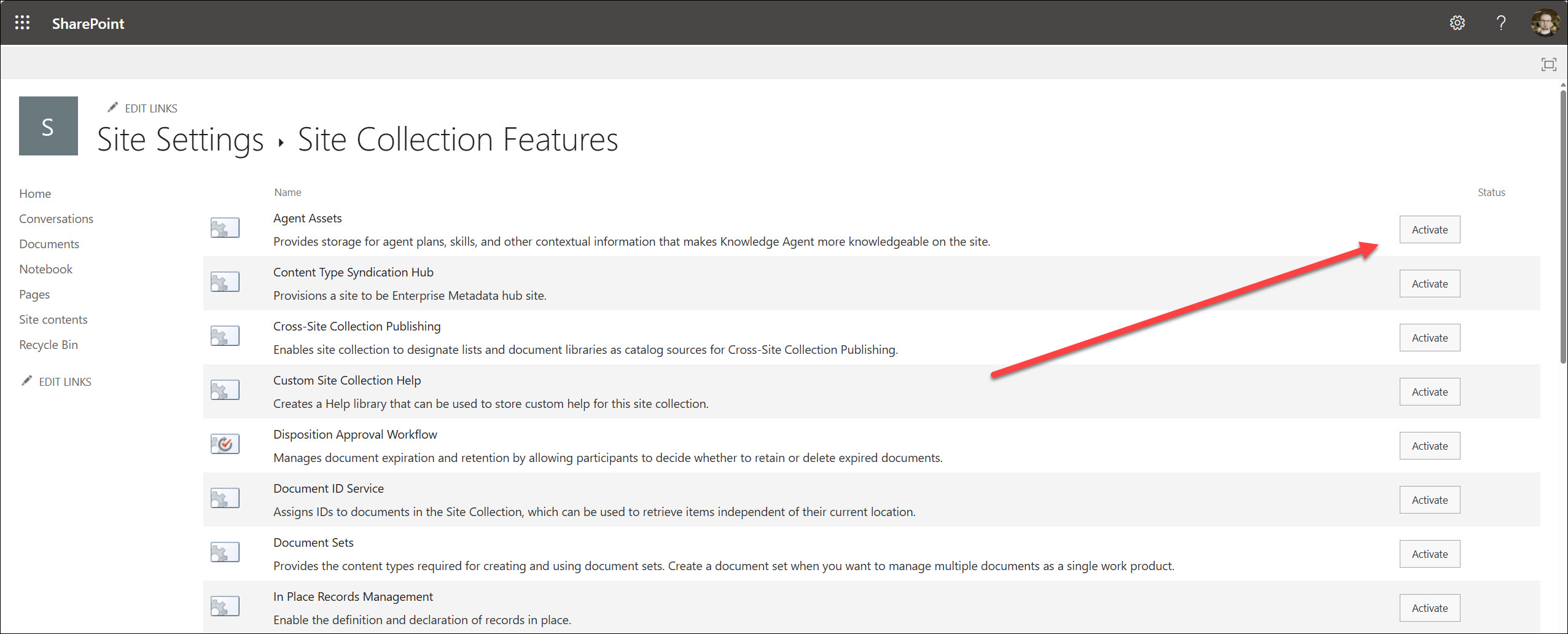
Now the configuration: skills are markdown files stored in the Agent Assets library. By default, it’s not enabled, and you have to do this manually (site admin permissions required).
1. Navigate to the Site Settings page and then to the Site Collection Features page ( https://<site address>/sites/<site name>/_layouts/15/ManageFeatures.aspx?Scope=Site).
2. Enable the Site Assets feature.
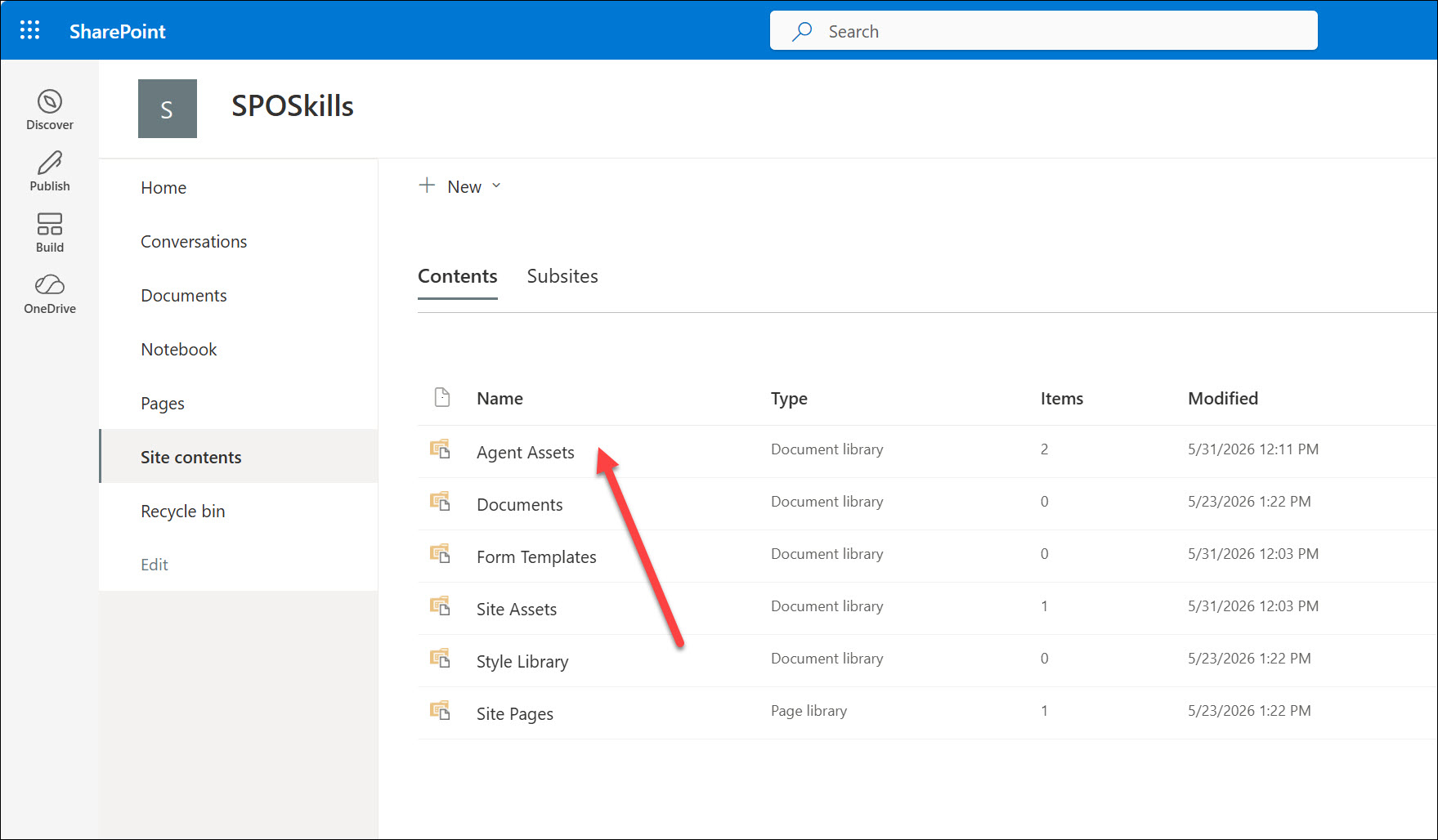
3. When it’s activated go to the Site content page and check if there is the Agent Assets library.
Create skills
A skill is a markdown file with instructions inside. Files are stored under /Agent Assets/Skills/<skill-name>/SKILL.md. You can create and manage skills through chat, or by creating/editing the .md file directly. If you do this manually, keep the format intact so AI in SharePoint can continue to interpret the skill correctly.
The best idea for the first skill is to use chat – you will get a properly formatted MD file with all required sections inside.
1. Open your site and start chatting with Copilot
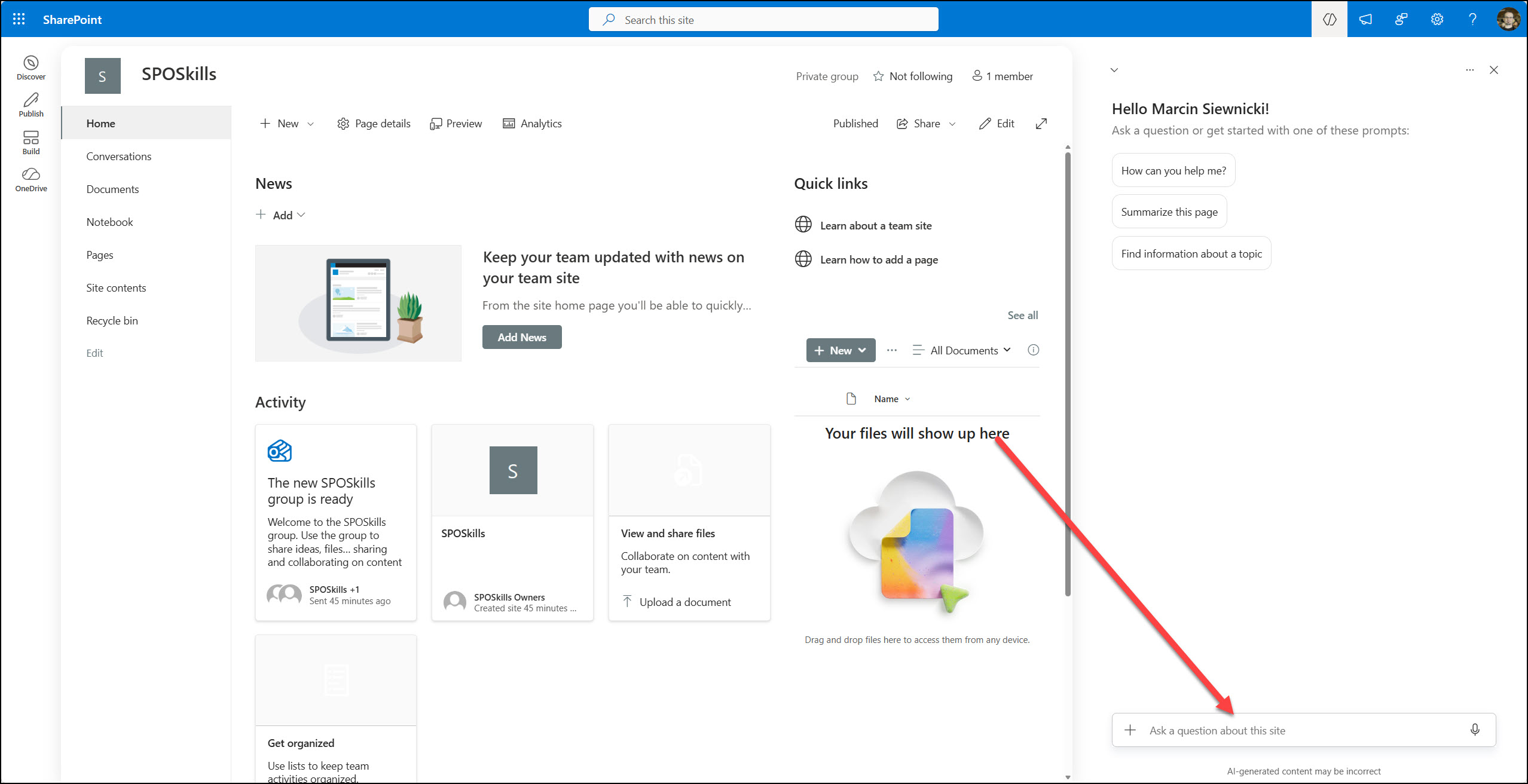
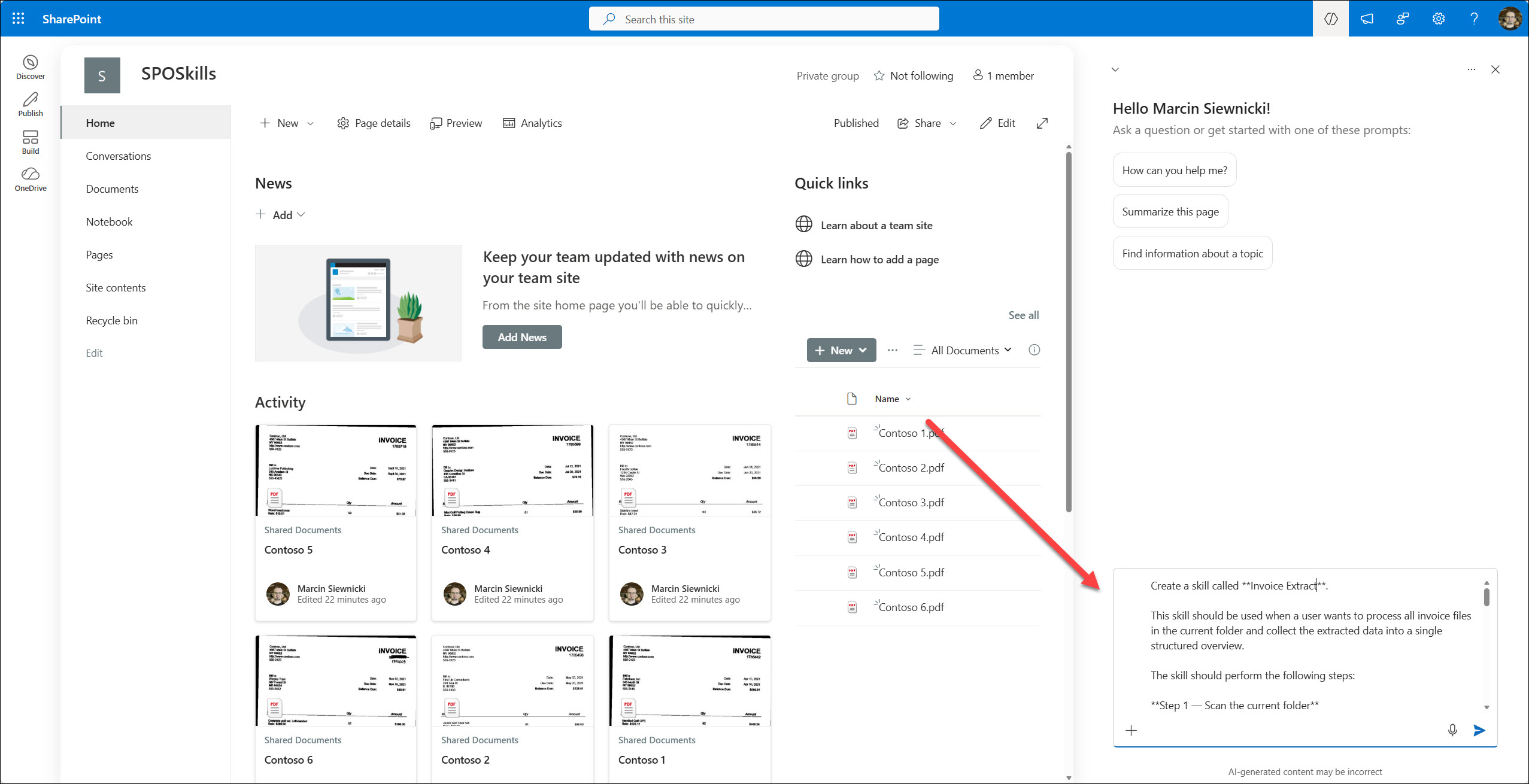
2. Type what you want from a skill (I asked for a skill to analyze invoice files inside a folder, extract all information, create a summary table, and validate all information).
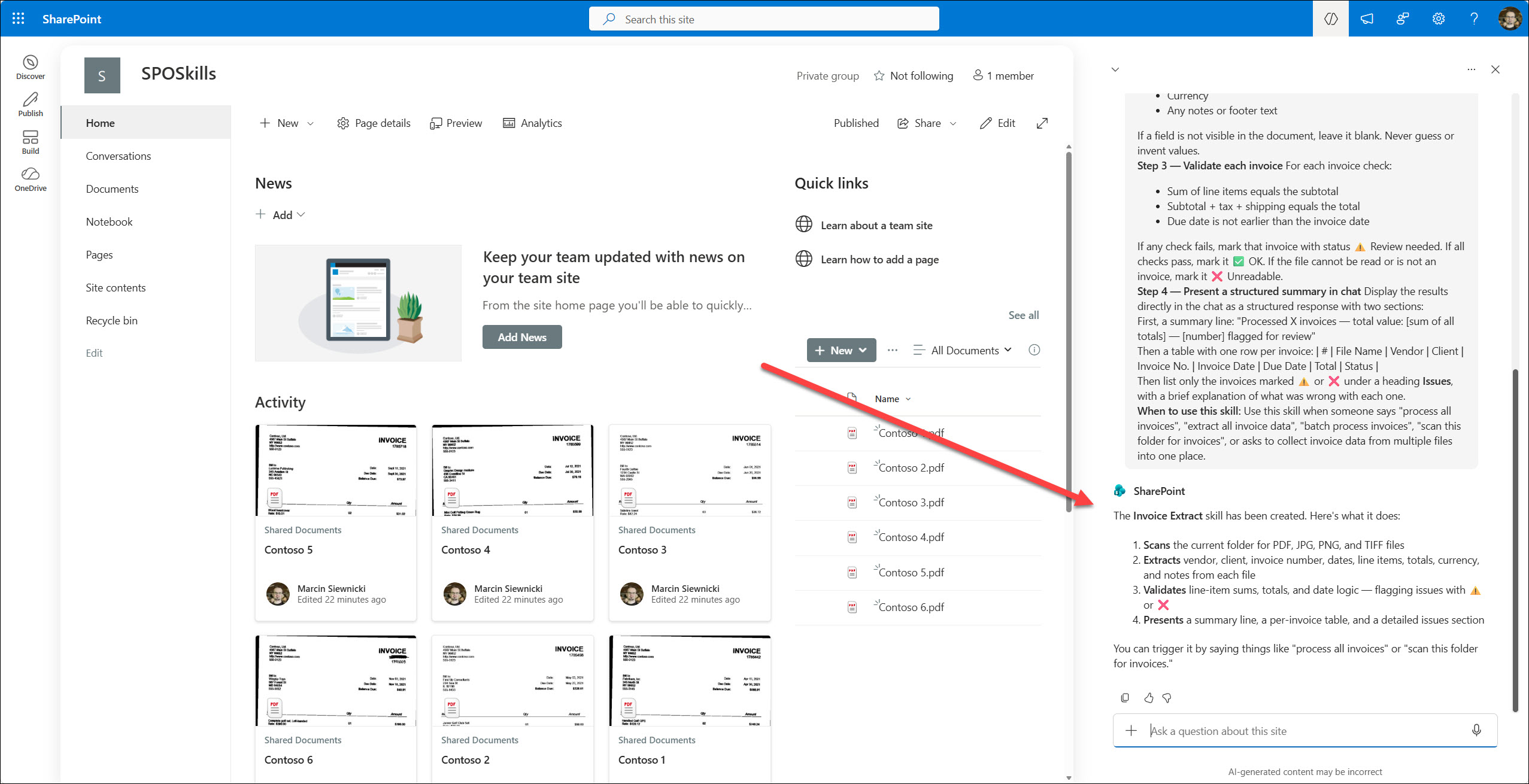
3. When it’s done, Copilot displays info about the newly created skill.
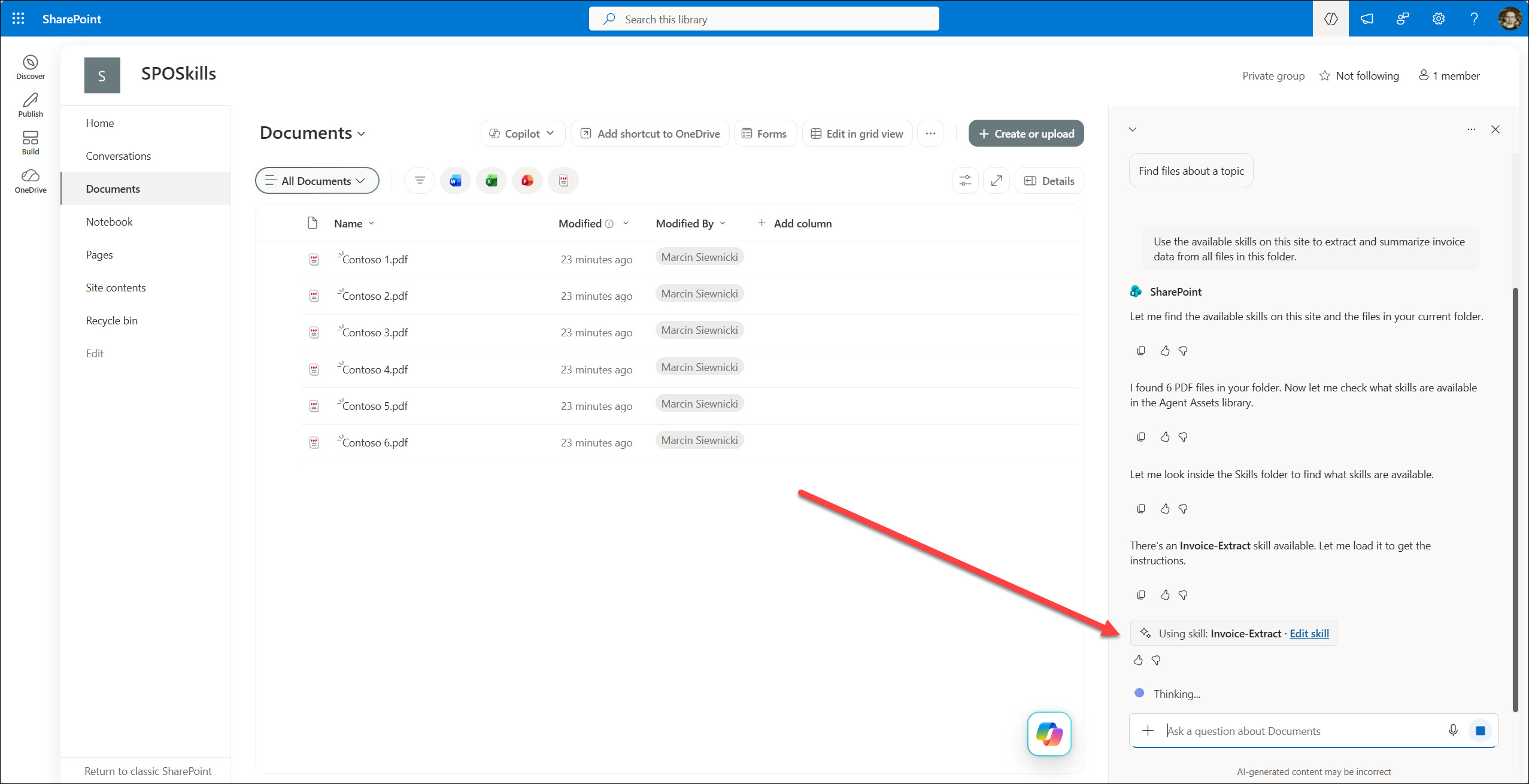
4. Now you can use that skill. I uploaded 6 PDF files (invoices) to a folder. From that folder, I run a Copilot and ask it to analyze them and extract data using a skill. You can type the name of the skill or just what you want. Copilot will try to understand and match a proper skill for the task.
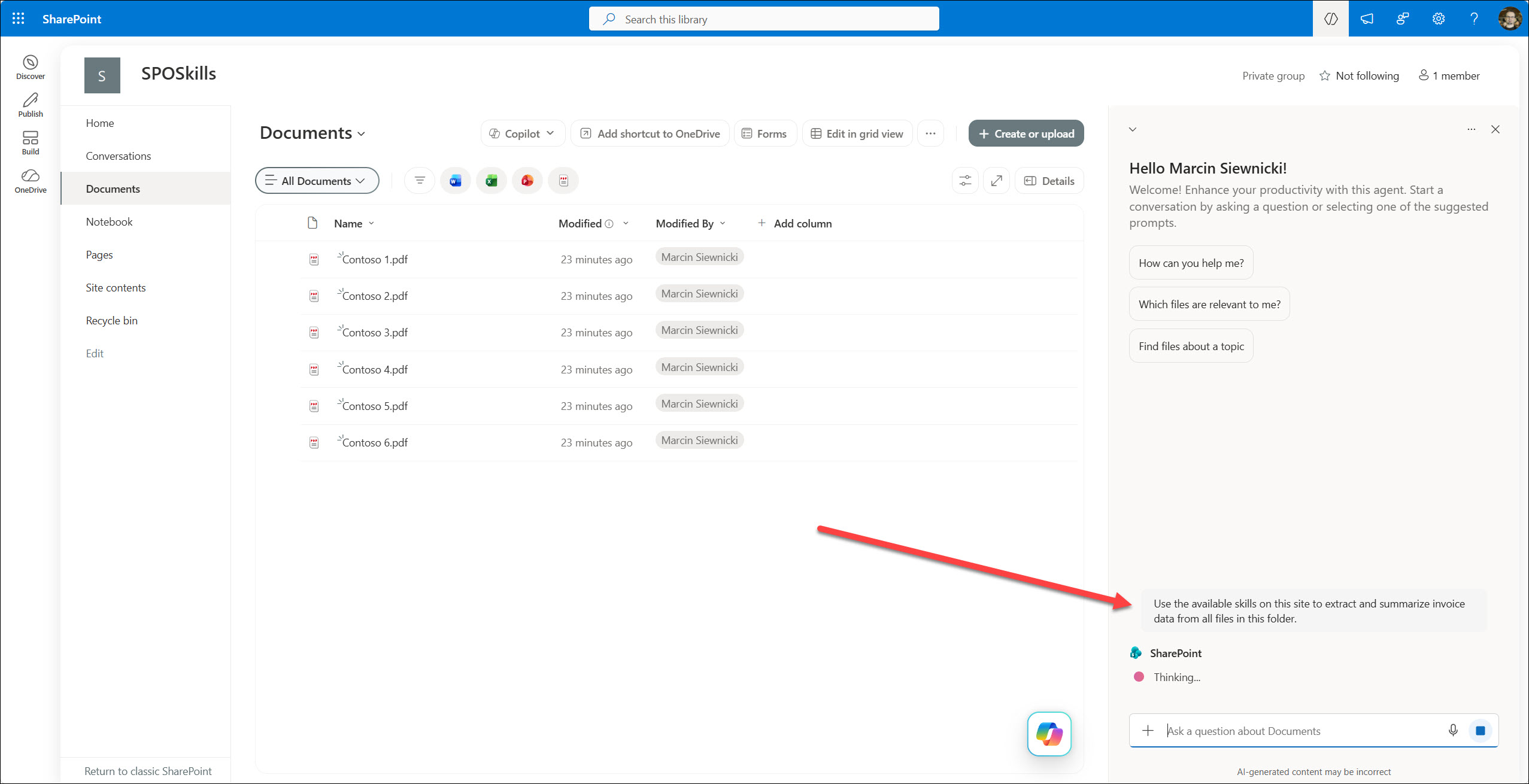
5. When Copilot matches the skill, it will display that info in the chat.
5. When it’s done, you will get detailed information in the chat windows. In this example, I have an invoice summary (formatted as a table) and info that 1 invoice requires additional manual validation.
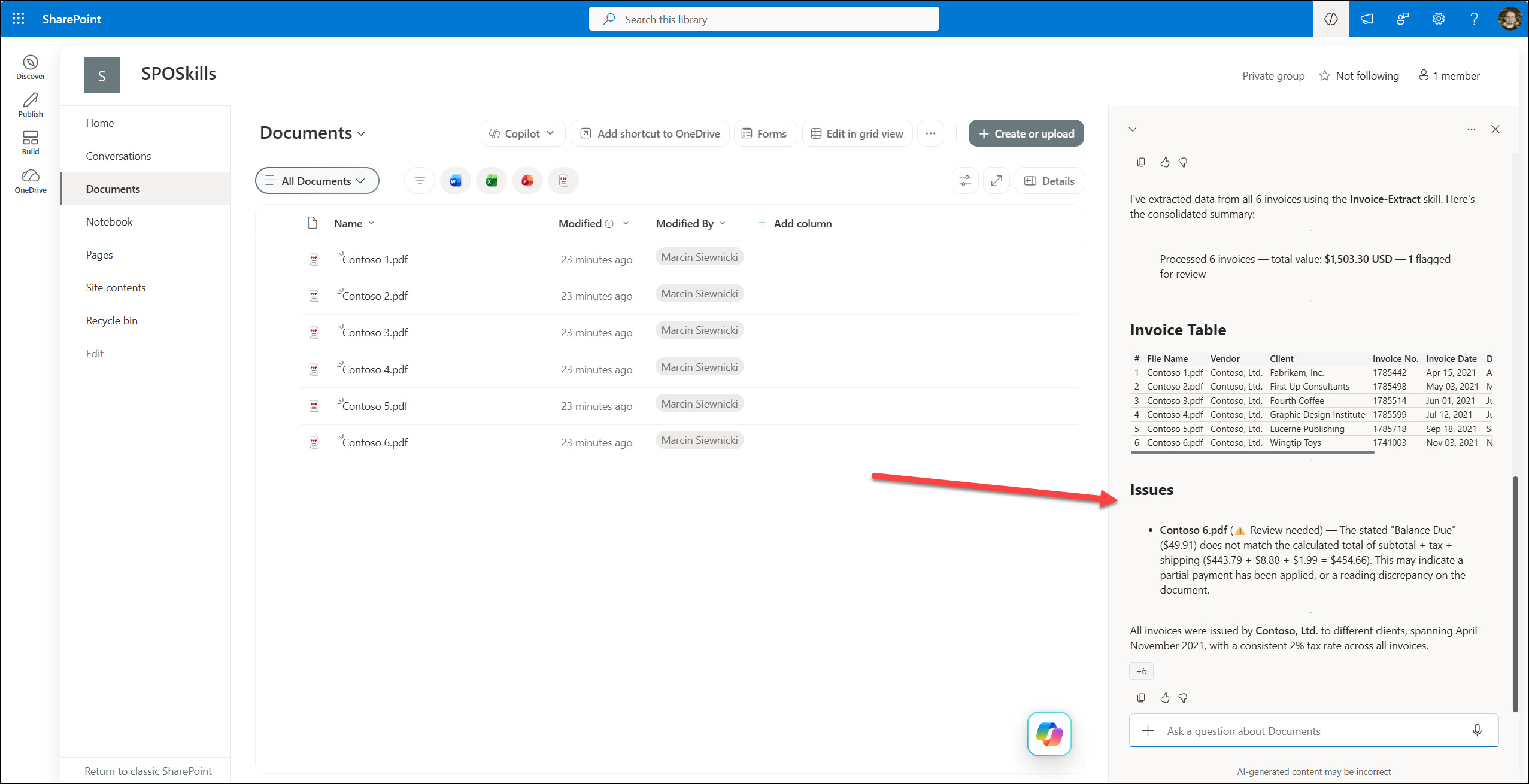
Now you can use that information to create a report, send an email, etc. Keep in mind that right now, Skills can’t create files inside a library. This is quite a limitation, but it should be resolved when a new feature is available (planned for June). Nevertheless, you have output in the desired format, and you can use that in other tasks.
The entire process takes some time – it depends on the skill complexity and the number of files that you want to analyze. My test took about a minute, which is ok time for such a task. If you ask for a huge number of files, it can take much longer. But that’s fine – it must do the job.
MD Files
Let’s check the technical part – MD files.
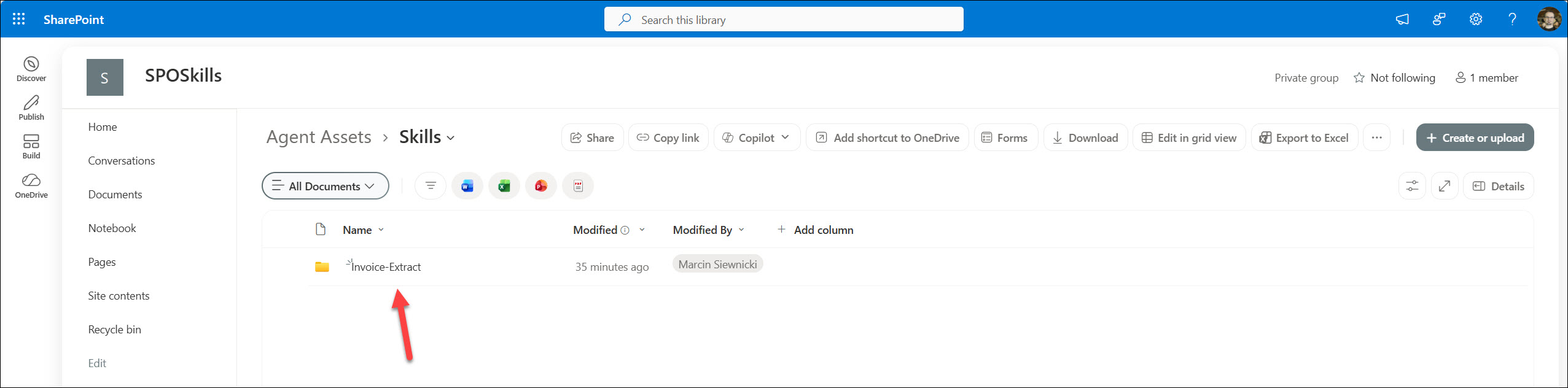
1. Go to the Site content page, select the Agent assets library, and select the folder Skills. There are all the skills on the site in the folder.
2. Select the skill that you’ve just created – mine is called Invoice-Extract
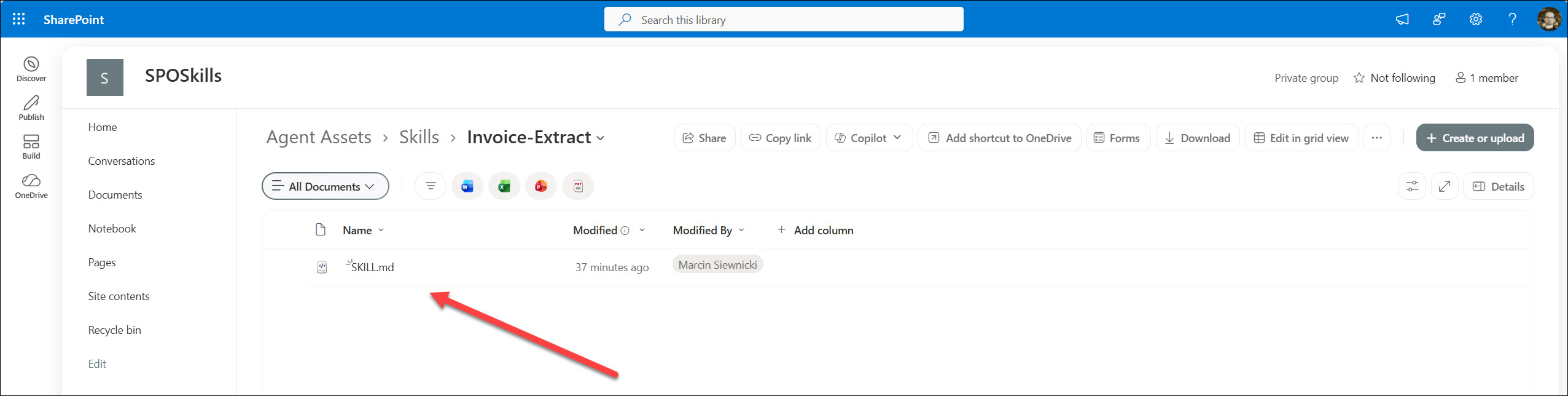
3. There is a file called SKILL.md. This is the definition of your skill. Select that file.
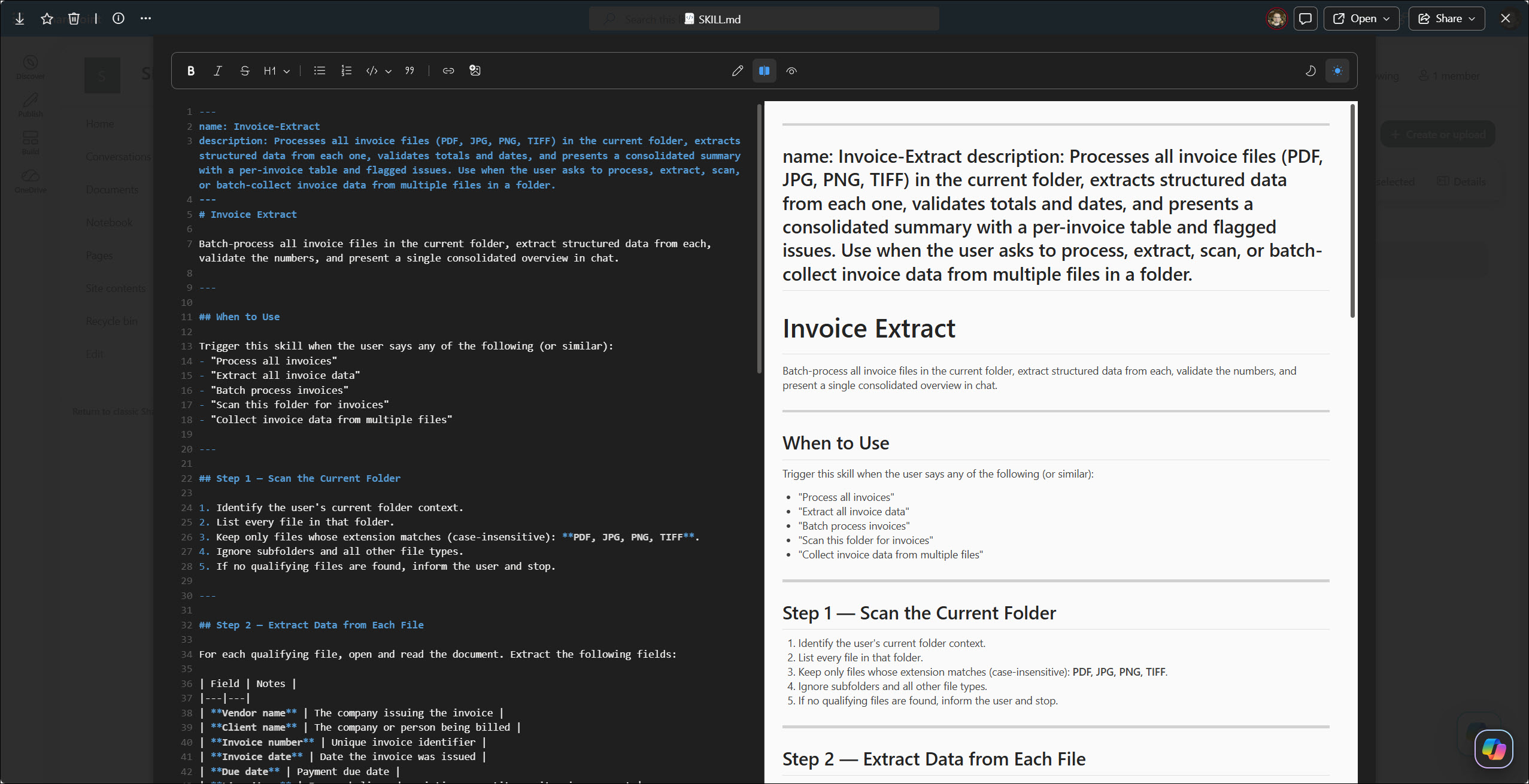
4. SharePoint displays the skill MD file, and you can review its structure, copy it for further modifications, or save it as a template. Right now, SharePoint displays MD files in a dedicated designer – the code is displayed in the left part of the screen, and the preview is displayed in the right part of the screen. It’s really helpful because you don’t need to download it and open in a dedicated viewer/designer.
Summary
The SharePoint AI Skills are very powerful – you can use them to generate report data, get information from files, etc. You can easily find many scenarios for your tasks. Skills are also versatile because they are automatically shared with all members of the site. You create them once and use them when you need them, plus your team can also use them.
This is a new feature, and it’s still in Preview. There are some limitations and bugs. The biggest limit for me is the lack of support for creating files inside document libraries. It really blocks many fantastic scenarios, and we need to wait for that (it’s planned for June). Sometimes Copilot can’t find the right skill, so for now I try to use the full skill name in every prompt.
Overall, it’s a fantastic feature. There are so many scenarios on my list – I just need some time to implement and test them.